

Branded customer email notifications
Delivery notifications in Track-POD Web are better than ever. Check out the new look of our notifications settings + brand-new features you can use today to get the most out of shipping updates.
Read More
Before a single van leaves the lot, you’ve already mapped the stops, checked the windows, and optimized the load. But one thing still keeps your operation from running clean: drivers seeing their routes too soon, asking questions, or even worse: starting before you're done. That ends now.
With Track-POD’s Ready status, you control when a route becomes visible, ensuring your team sees exactly what you want them to—when you’re ready for them to see it.
On this page
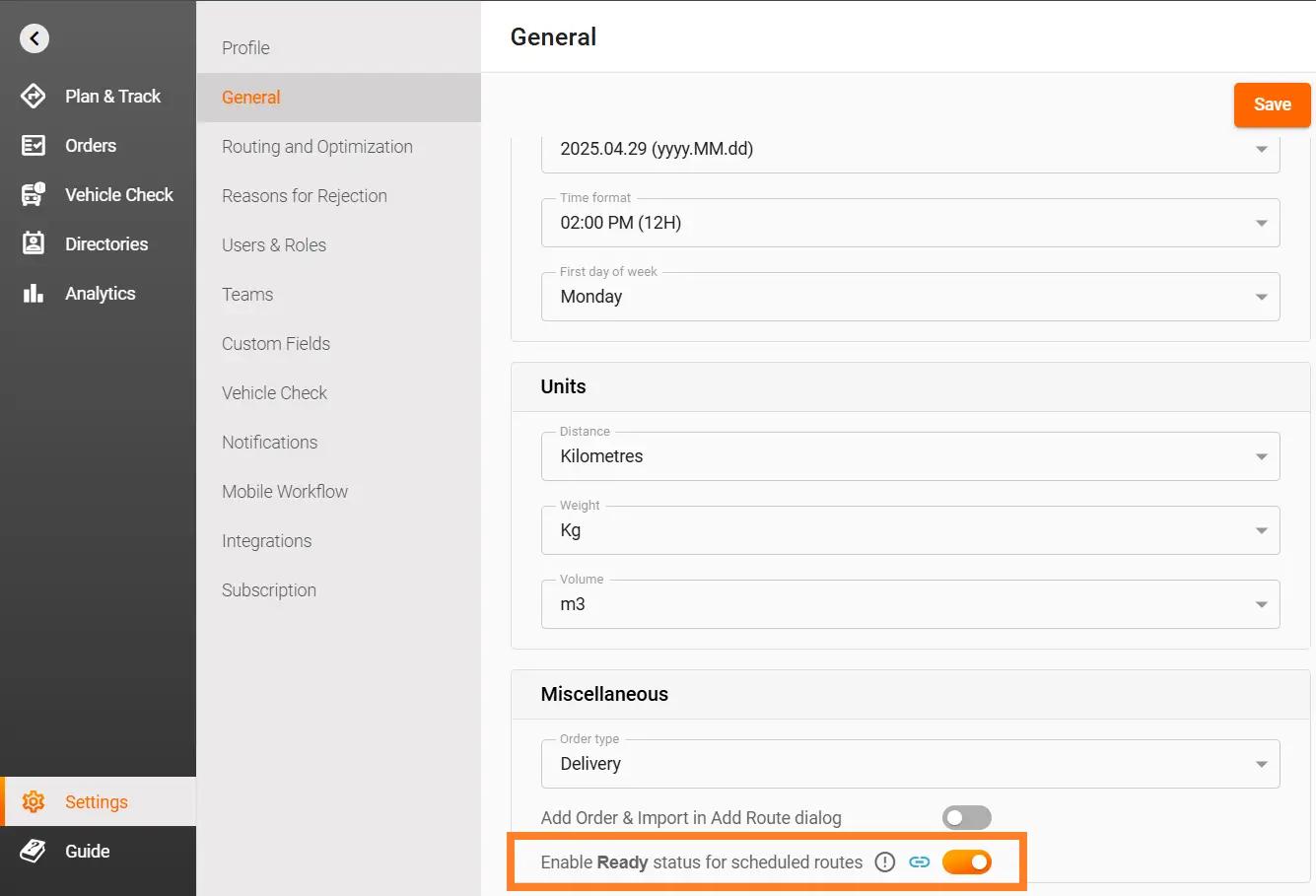
First, make the feature available:
Navigate to Settings > General > Miscellaneous
Enable Ready status for scheduled routes and Save.
Without this toggle, the “Ready” option won’t even show up.
Use Case: A regional dispatcher finalizes next week's routes on Friday afternoon but doesn’t want drivers to see them until Monday morning. Enabling Ready lets you hide routes until you choose to reveal them.
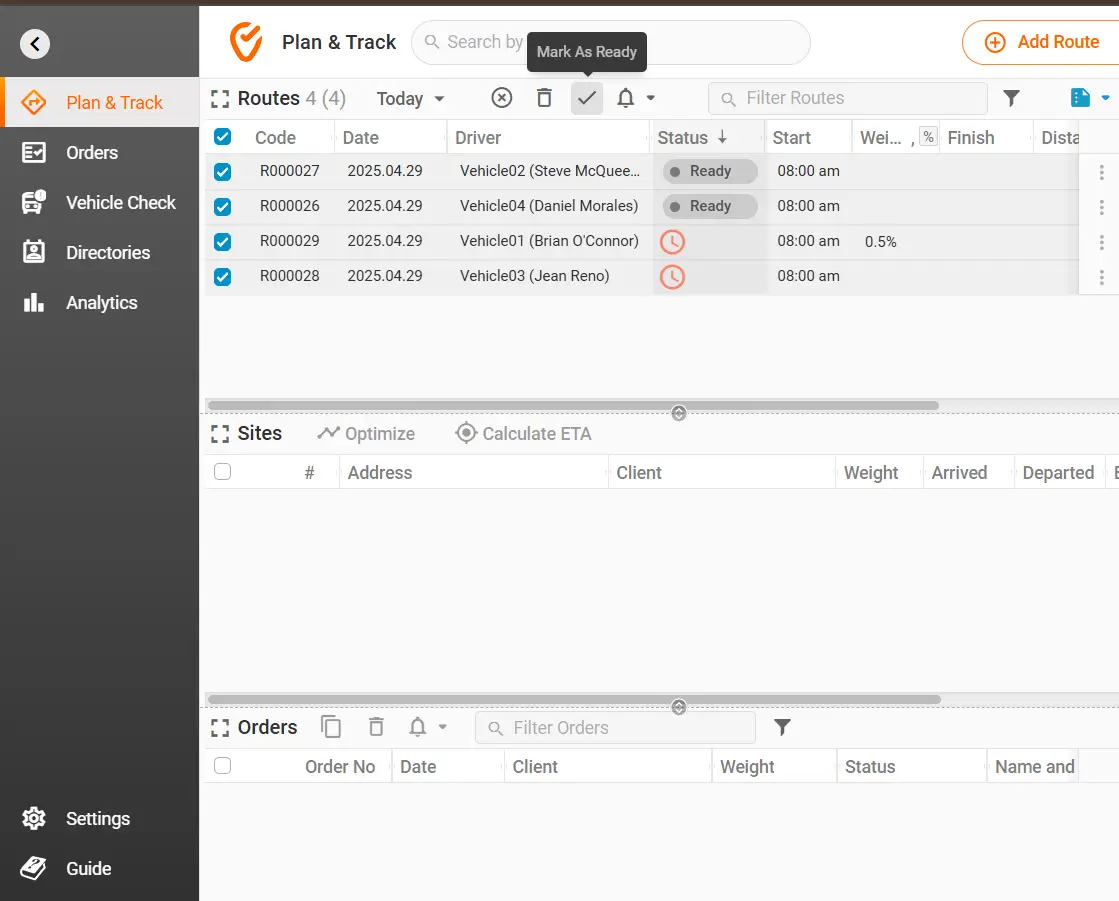
In your Plan & Track dashboard:
Select one or more routes.
Click the check mark to Mark as Ready in the toolbar — or next to each route.
The status flips to Ready, signifying that the route is approved for driver use. Otherwise, it will have an orange clock symbol in its Status column.
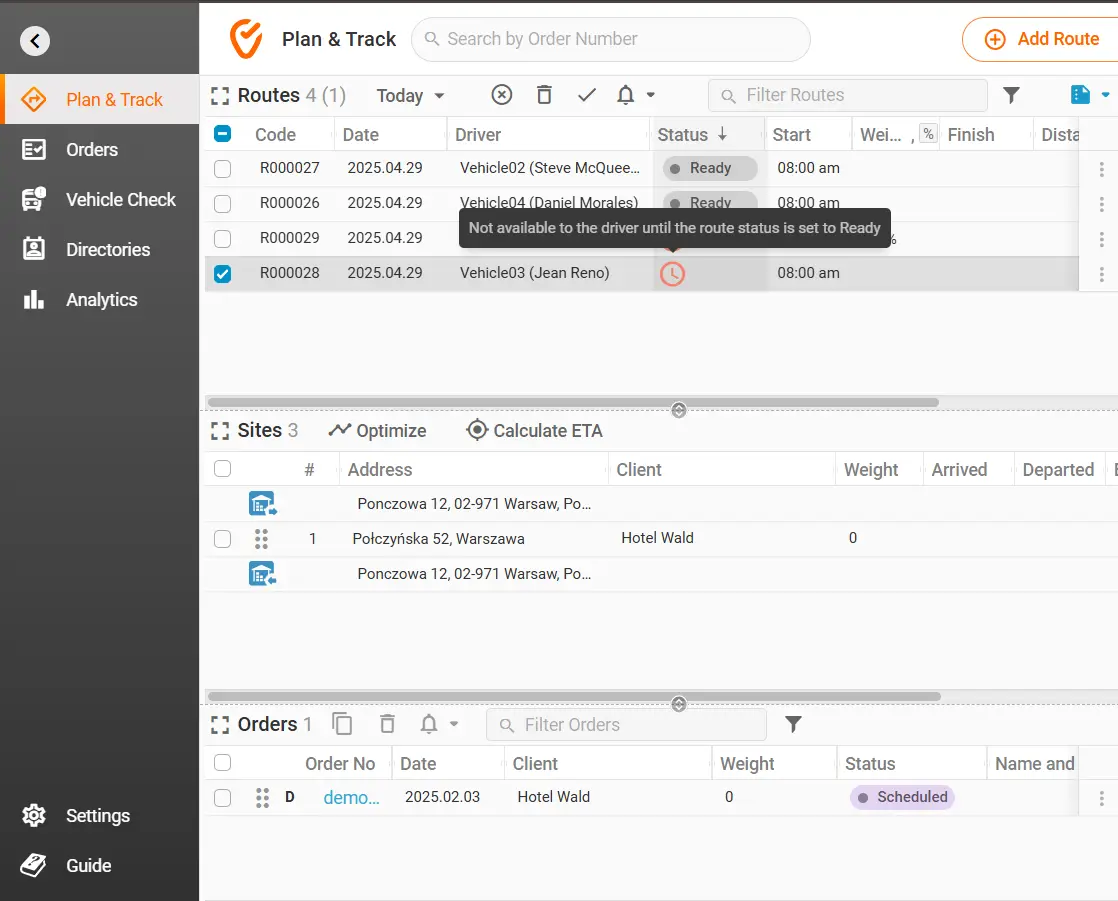
Use Case: During a holiday crunch, the dispatcher is editing routes in real time, adding information, changing names, etc. Mark them Ready exactly at midnight, so drivers only see their assignments when they are actually finished and complete — no premature starts or miscommunications.
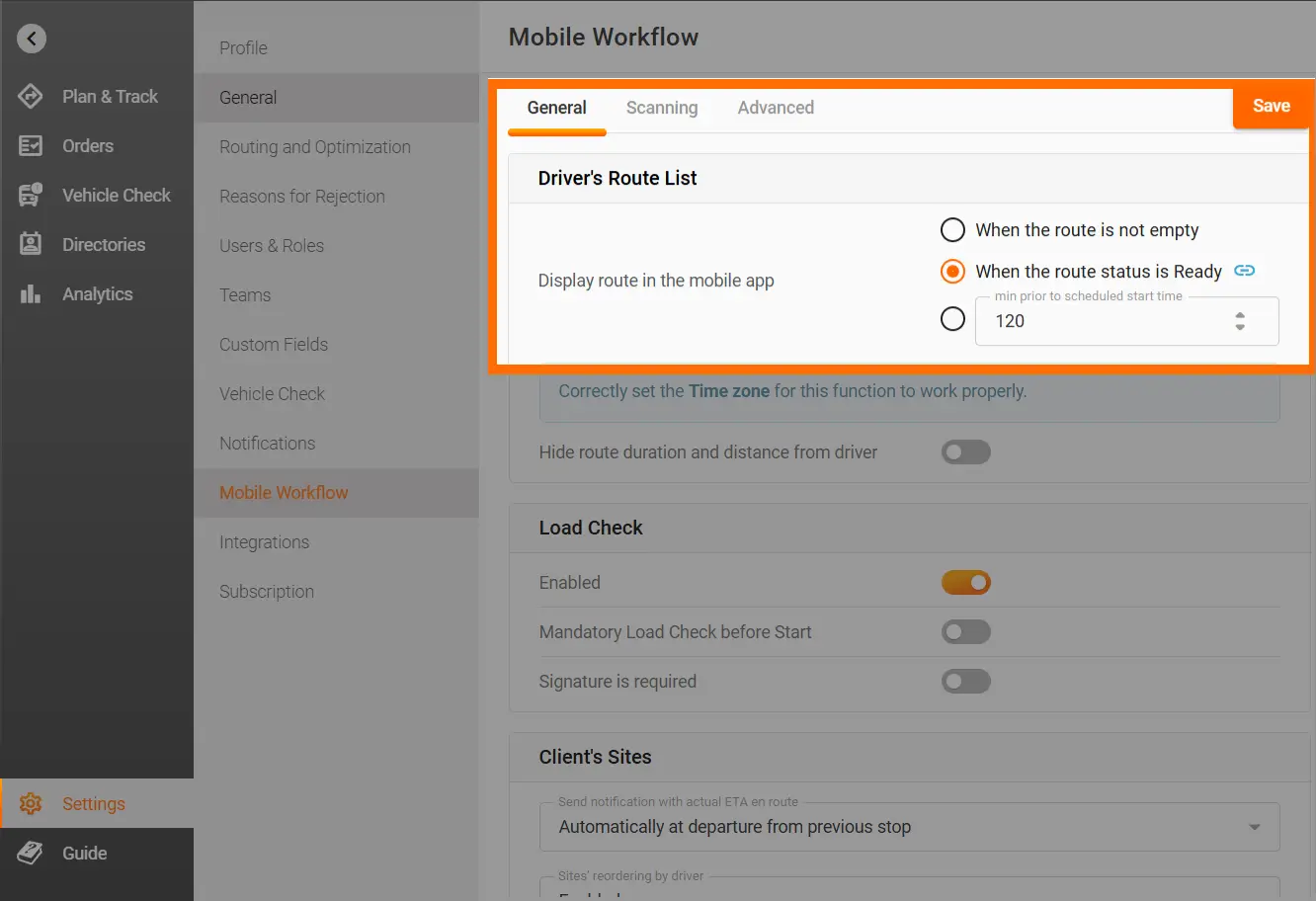
To ensure drivers only see Ready routes:
Go to Settings > Mobile Workflow > General > Display route in the mobile app.
Check When the route status is Ready and Save.
Now, routes remain hidden on the mobile app until you mark them Ready.
Use Case: A school lunch provider plans multiple delivery waves but wants drivers to focus on morning runs only. By tying visibility to the Ready status, afternoon routes stay hidden until those morning runs conclude.
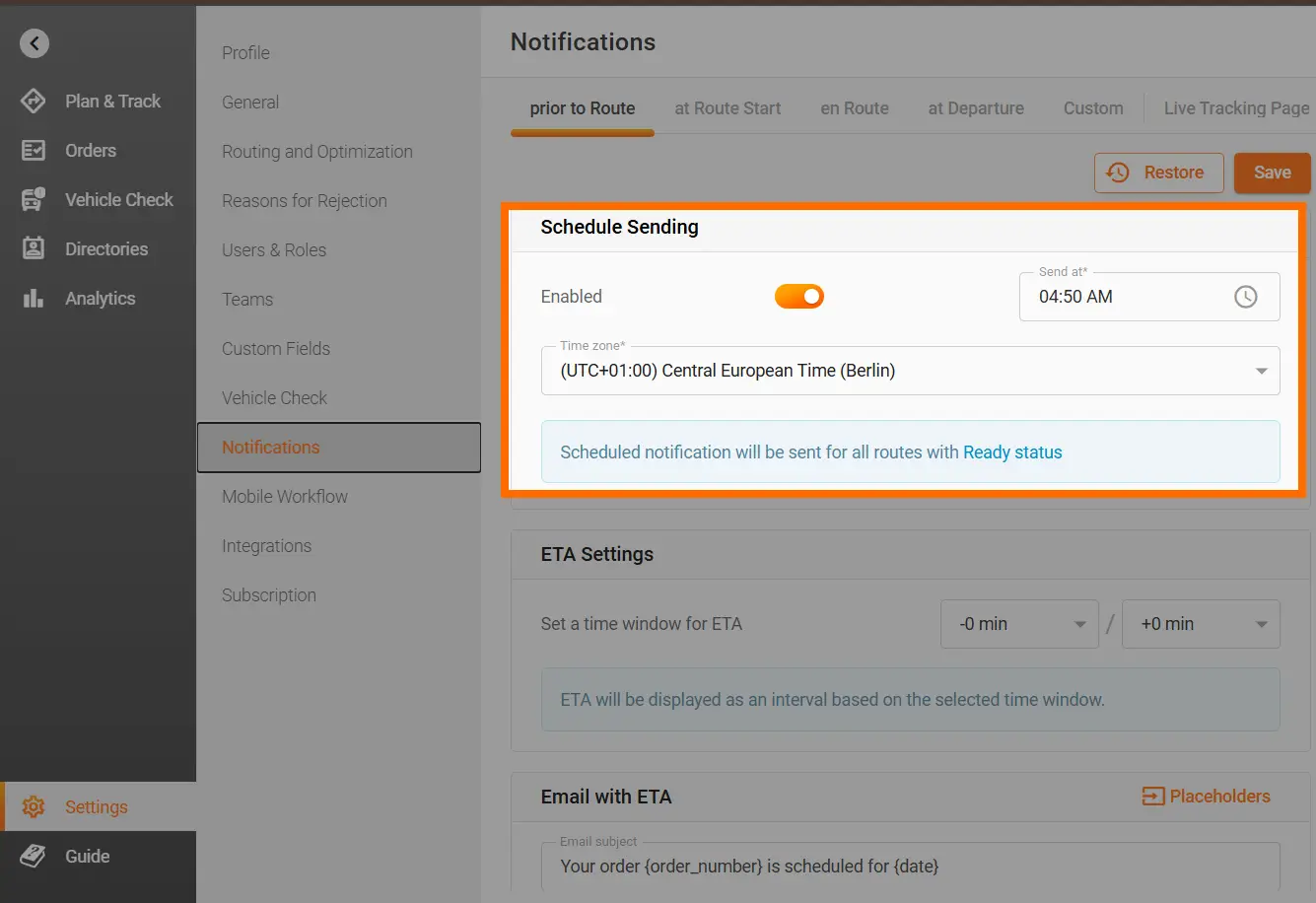
On our Ultimate plan, you can also schedule notifications tied to Ready:
Go to Settings > Notifications > prior to Route > Schedule Sending.
Enable scheduled notifications.
Set the dispatch time and time zone for alerts.
Track-POD automatically sends scheduled notifications to your customers about Ready routes. No manual action from dispatchers required.
Use Case: Let’s say your deliveries start at 6:00 AM. You schedule a notification for 4:50 AM Berlin time. For all routes marked as Ready, Track-POD will notify customers in advance when to expect their delivery. Now they’re informed and prepared without any need for last-minute dispatcher involvement.
Ready status isn’t just about visibility — it’s about control. It ensures only finalized routes trigger communications, so customers get accurate delivery info and your team avoids confusion from premature updates.
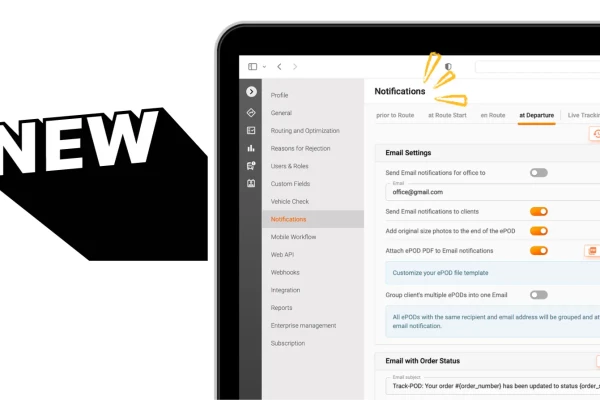
Delivery notifications in Track-POD Web are better than ever. Check out the new look of our notifications settings + brand-new features you can use today to get the most out of shipping updates.
Read More
Use Track-POD client portal software to create accounts for your shippers and let them add, track, print shipping labels, and download Proof of Delivery for their orders.
Read More
Track-POD integrates with leading navigation apps, including Google Maps, Waze, Hammer, HERE We Go, Sygic, Mapy. cz, and now TruckMap. Choose the GPS navigator that best suits your business needs in 2026.
Read More