- Product news
- Route Planning
New: Know When a Driver Adds an Order

by
Anton Ananich
August 21, 2026
Some of the day’s work begins on the road, when a customer at a stop asks the driver to collect a return or take one more drop, and the driver creates the order in the Track-POD app there and then. The office is still working from the morning’s plan, so the first sign of that order can be a customer phoning to ask about it, or a route running later than expected for no obvious reason.
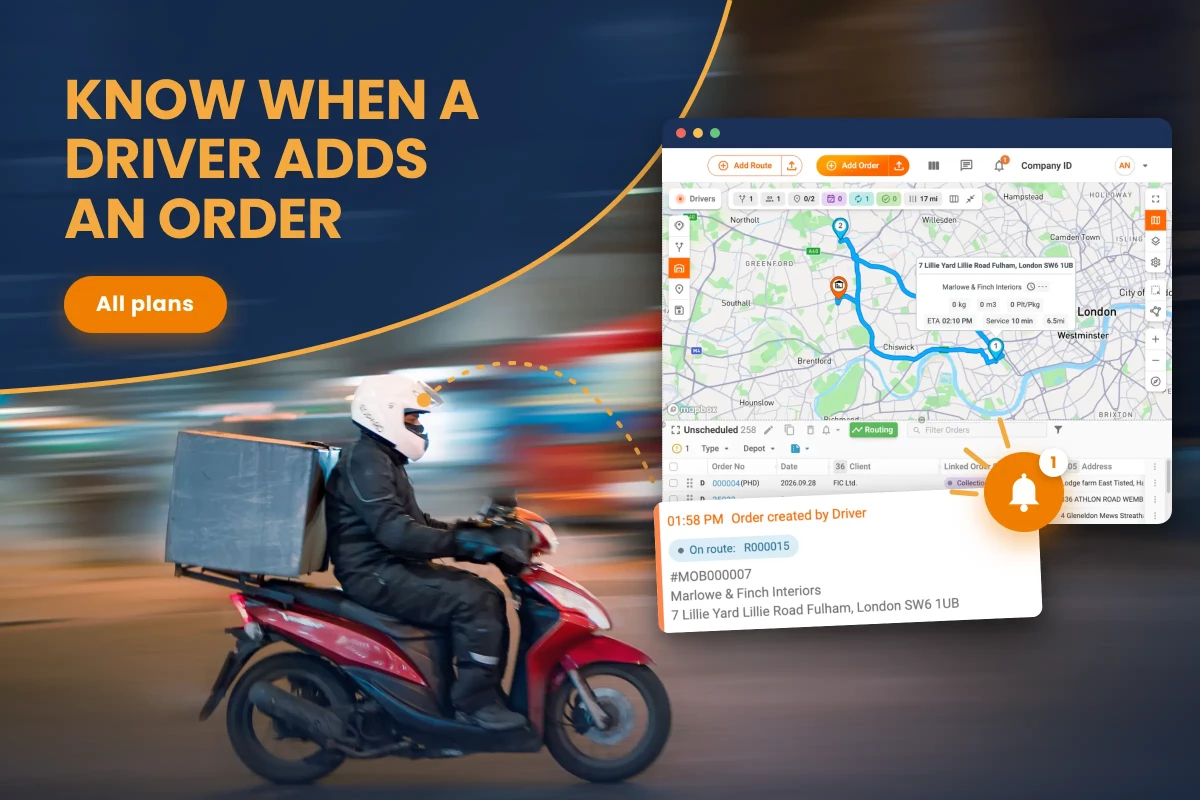
Dispatchers now get a notification the moment a driver creates an order, and one click opens Plan & Track on that route with the new order selected.
How it works
The notification lands under the bell icon in the Track-POD web app, alongside your other notifications, and behaves the same way they do.
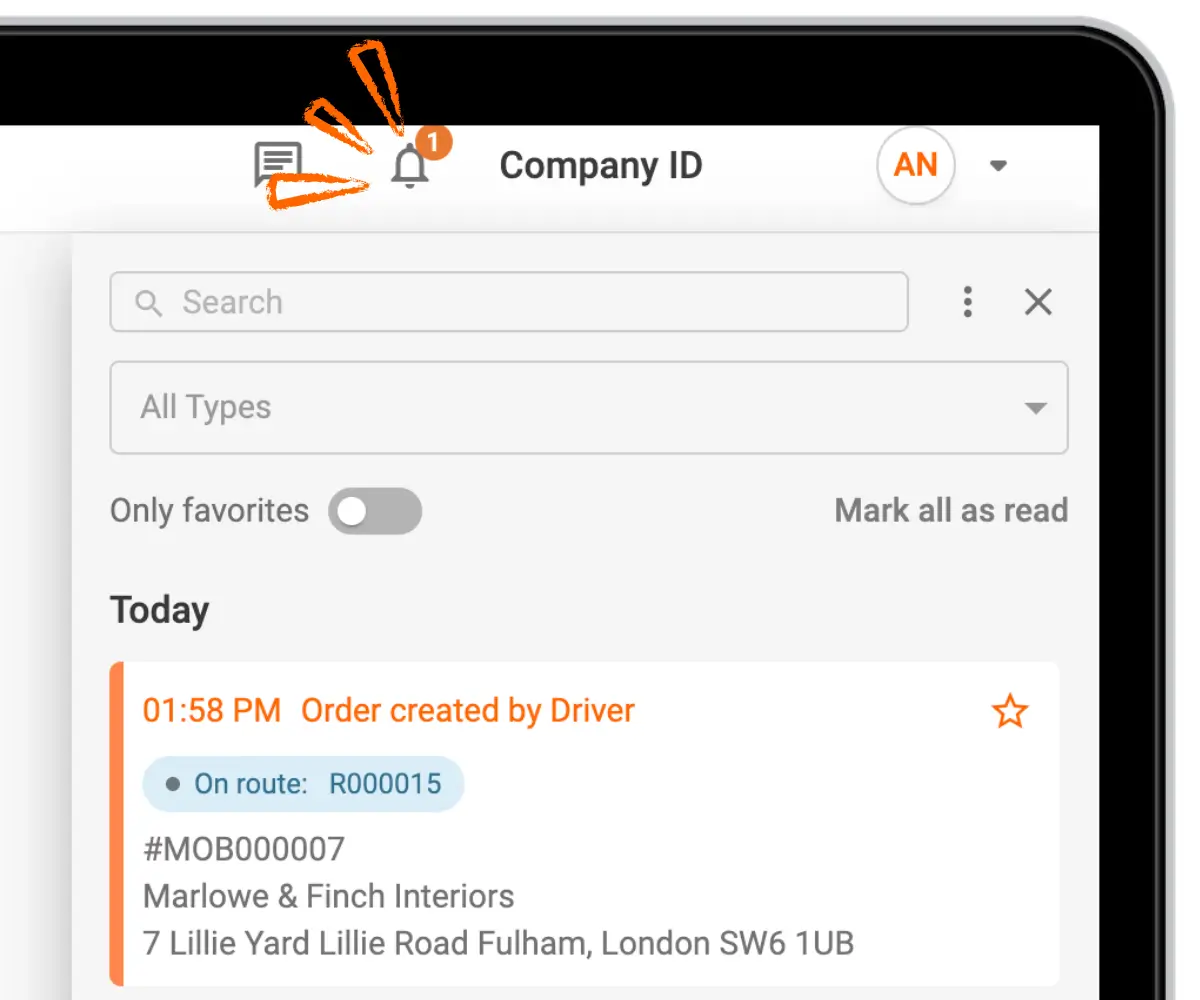
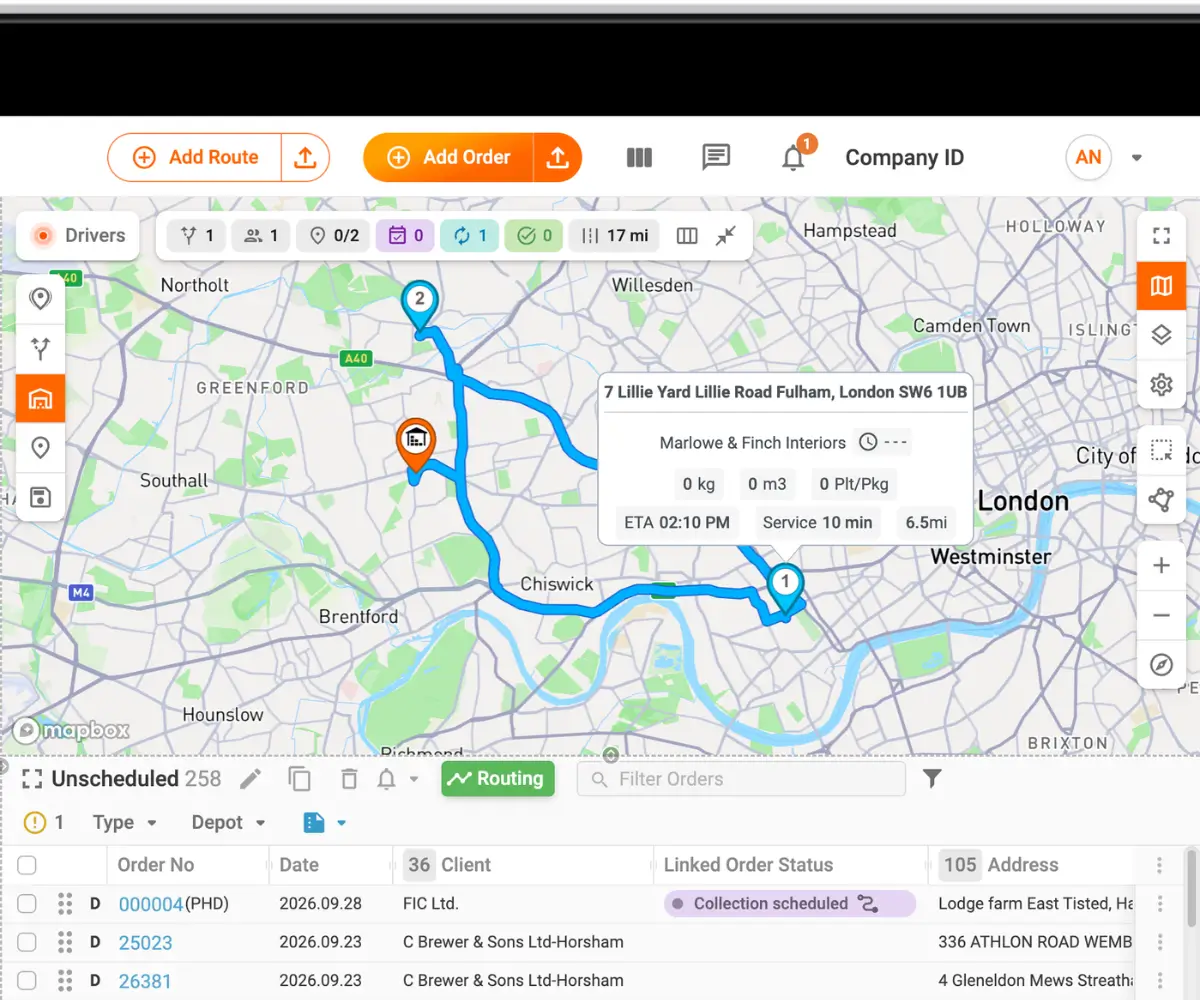
Click it and Plan & Track opens with the driver's route and the new order already selected, so you can check the details, adjust the route or reply to the customer without searching for anything first.
Setting it up
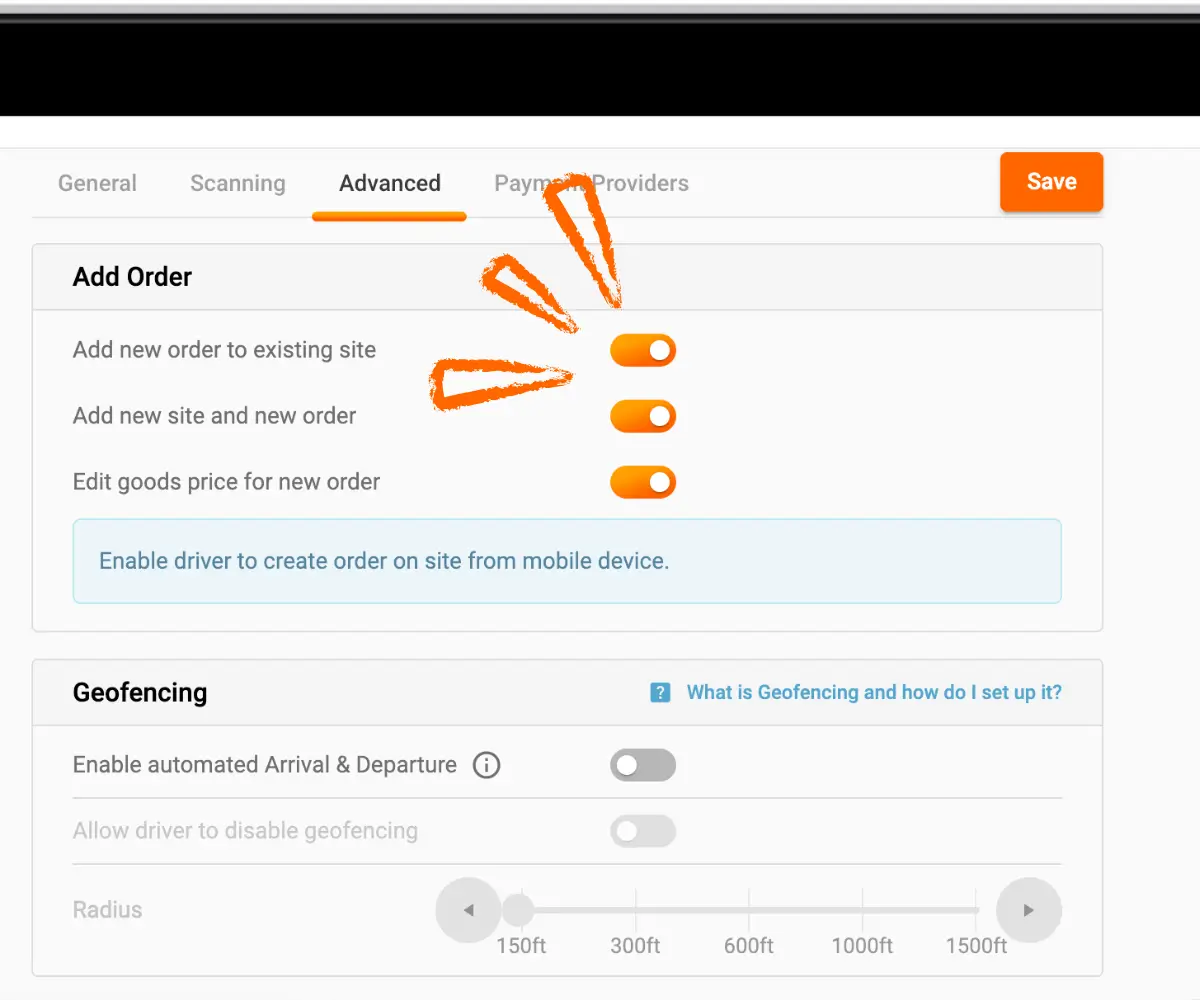
Two settings are involved. One lets drivers create orders in the app at all, and the other decides whether you hear about it.
First, Go to Settings → Mobile Workflow → Advanced and switch on the options in the Add order section. Drivers can then create orders from the mobile app.
After that, go to Settings → Profile → Notifications and switch on Order created by Driver.
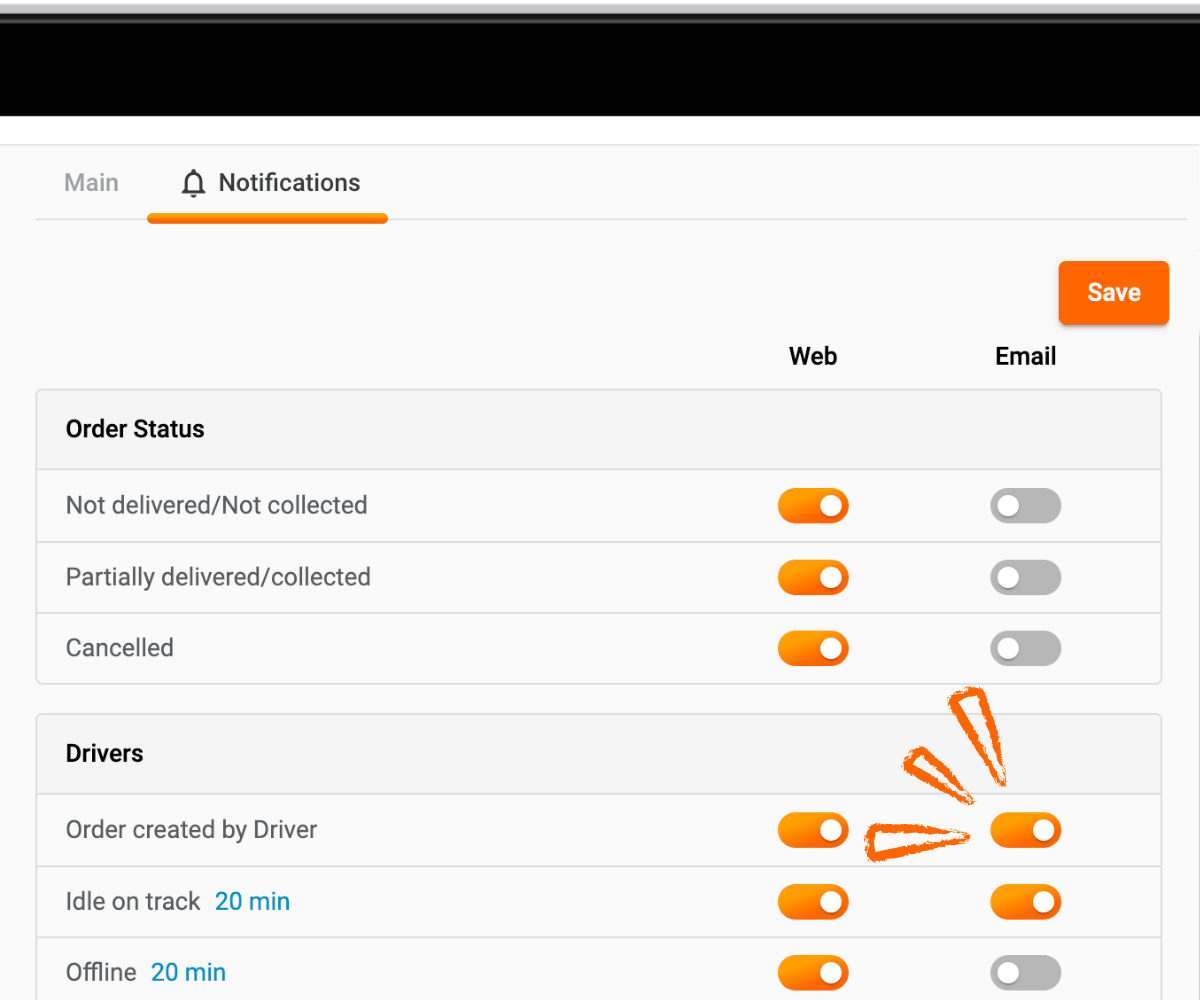
The notification has its own switch, so it can be turned off without touching any of your other notifications.
Why it matters
Orders created in the field are real work that the office didn't plan, and the sooner a dispatcher knows about one, the sooner it can be checked and fitted into the day. The notification puts it in front of them as it happens.
It also saves the dispatcher a search, because the notification goes straight to the right route and order, and on a day with many routes running that is the part that takes time.
Recap
When a driver creates an order in the mobile app, dispatchers now get a notification under the bell icon. Clicking it opens Plan & Track with the route and order selected. Drivers need the Add order options enabled in Mobile Workflow, and each notification can be switched on or off in Settings → Profile → Notifications.