

Custom Fields in Route Import
Route import in Track-POD now supports route custom fields. Map a column from your file onto any field you have configured for routes, and the values arrive with the import. Available on all plans.
Read More
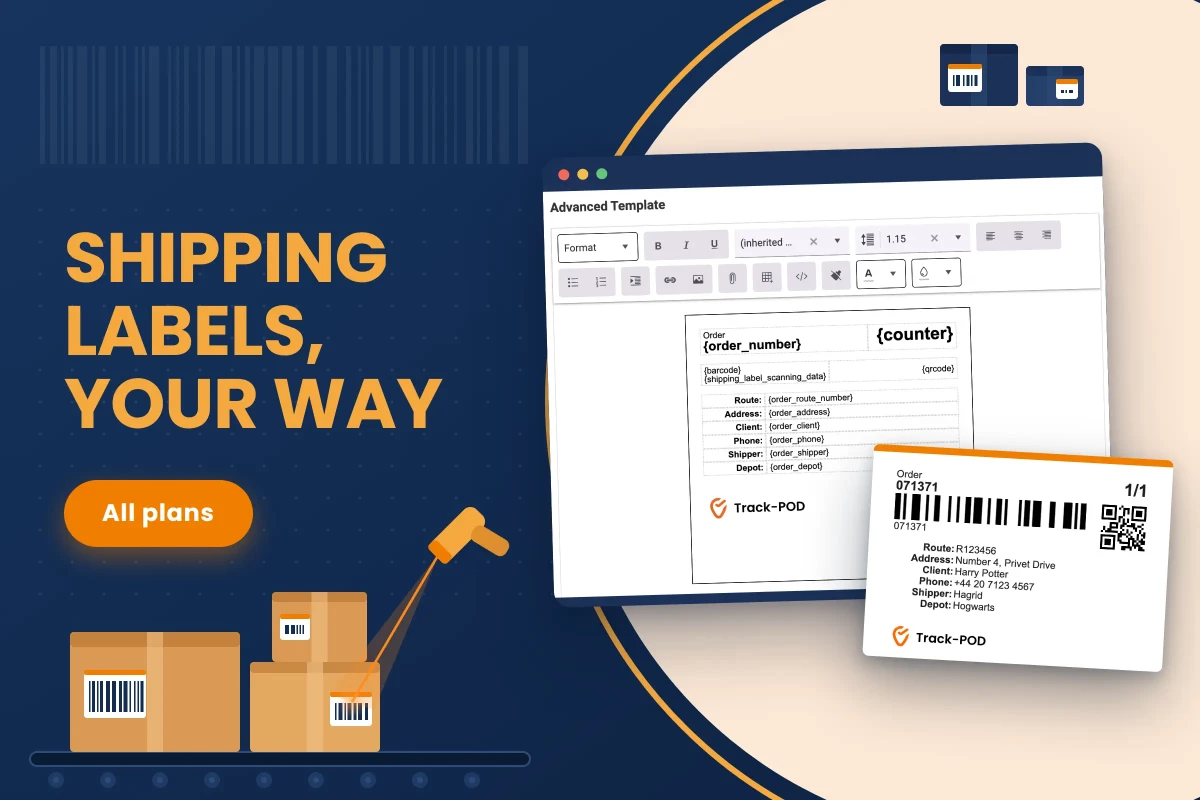
A warehouse handling several shippers rarely handles them the same way. One requires a scan at every site. Another prints its own shipping label format and will not accept yours. A third wants a load check before the vehicle leaves, and a fourth cares about none of it.
Until now those rules lived in one place. Mobile Workflow settings applied to the whole account, so accommodating one shipper's requirements meant applying them to every order in the system, or switching settings between jobs and hoping nobody forgot.
Shipper-specific label settings are now fully supported. Each shipper can carry its own label configuration and its own scanning rules, and those settings take precedence over the global ones for that shipper's orders.
Open the Shippers directory, pick a shipper, and click Edit shipper. At the top of the form in the Shipping label tab there is a Use custom settings switch. Turn it on and the shipper's own settings become editable below, including Shipping Label.
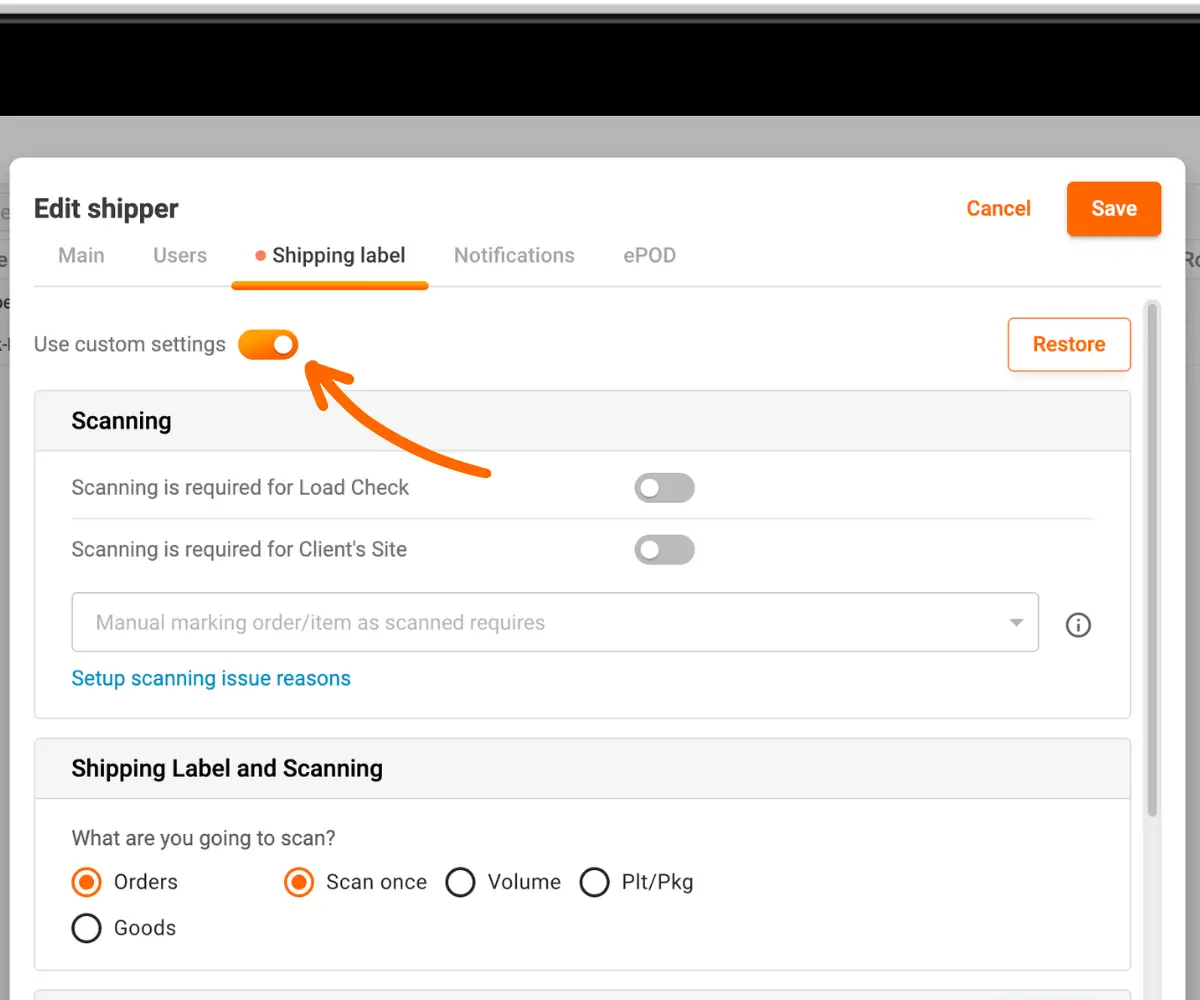
Leave the switch off and the shipper keeps using the global Mobile Workflow configuration.
Just above the label settings there is an Advanced template switch.
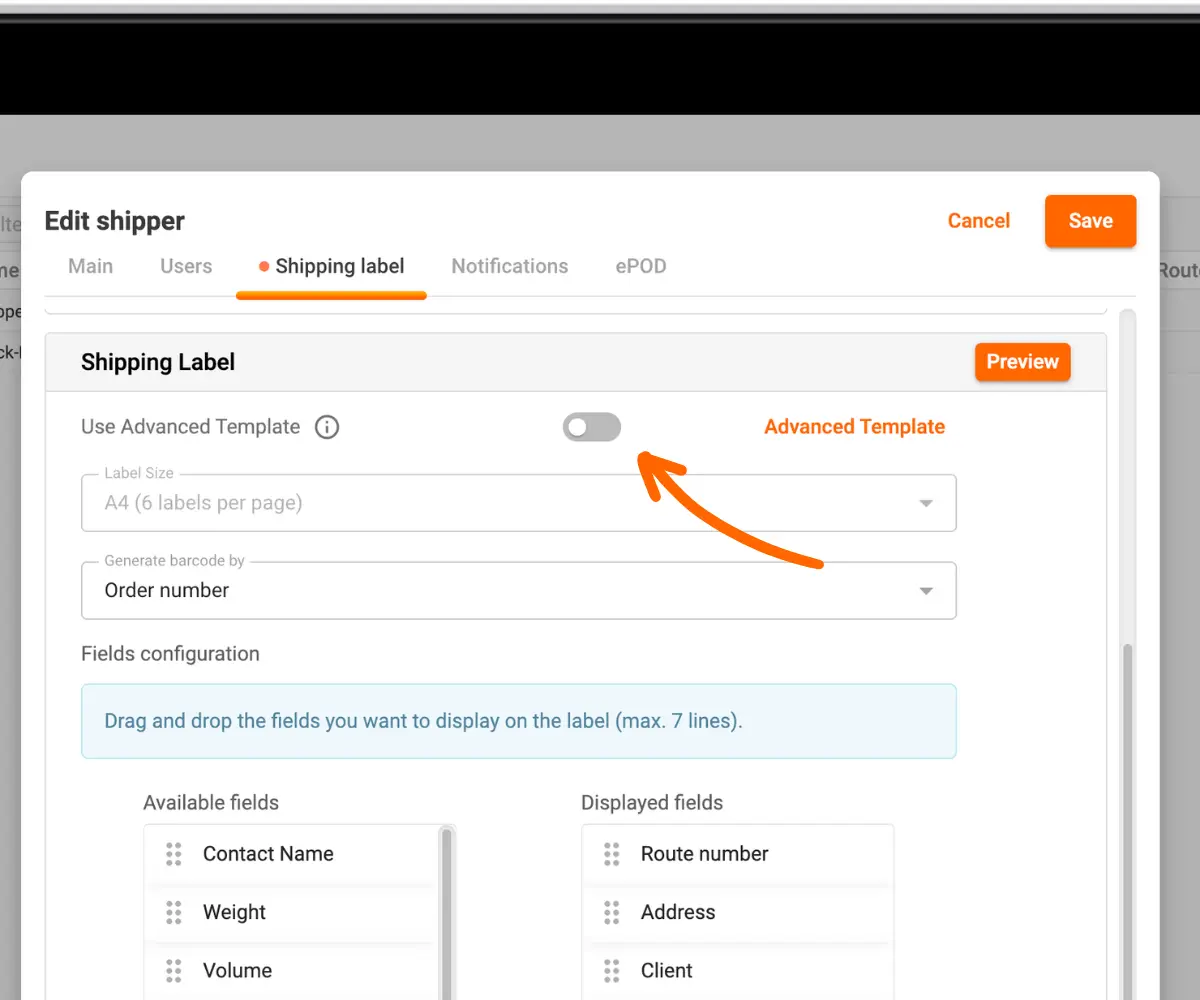
Turn it on, click the button beside it, and the label opens as HTML you build yourself.
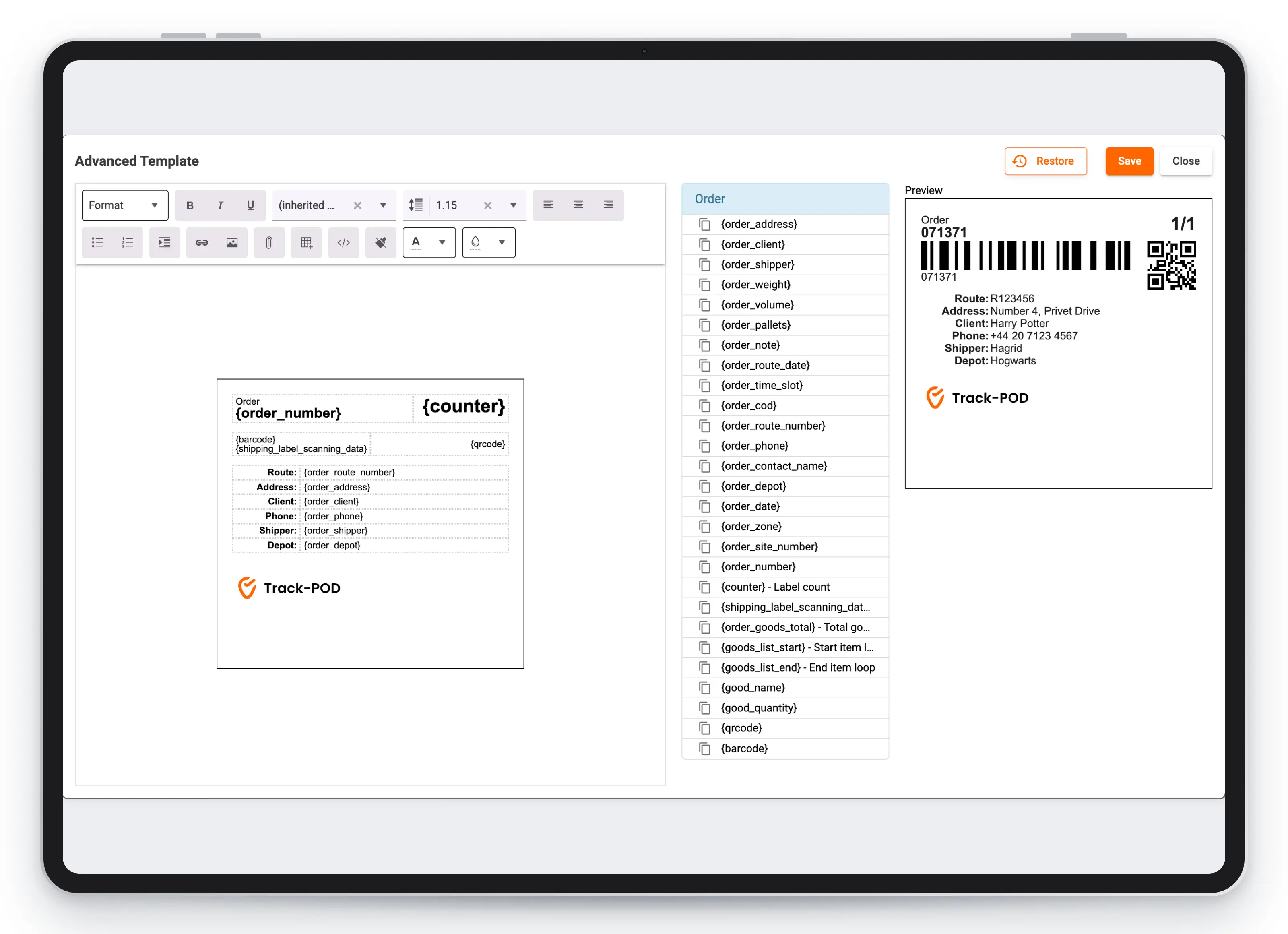
This is the answer to every request that no combination of checkboxes could satisfy: a specific block order, a logo in a particular corner, a barcode at a size the receiving warehouse insists on. Advanced template works for standard shipping labels as well, so it is available whether or not you use per-shipper settings.
Scanning rules arrive on the driver's phone through the Track-POD mobile app, and an old app version does not know about them. Devices that have been running the same build for a year or more need updating before the new rules take effect.
Worth a message to drivers ahead of the change, especially for subcontractors who use their own phones.
This was a frequent request from 3PLs and warehouses working for multiple clients. Their operation is defined by the fact that every client is different, and a single global setting made that difficult to reflect.
The settings now sit where the difference belongs, on the shipper record. A new client with unusual label requirements is set up once and behaves correctly from the first order, and nobody changes account-wide settings to accommodate one contract.
Each shipper can now carry its own shipping label and scanning configuration. Turn on Use custom settings in Edit shipper, then set the label options, scanning requirements, or a full HTML layout through Advanced template. Those settings override the global Mobile Workflow rules for that shipper's orders. Drivers need a current mobile app version. Available on all plans.
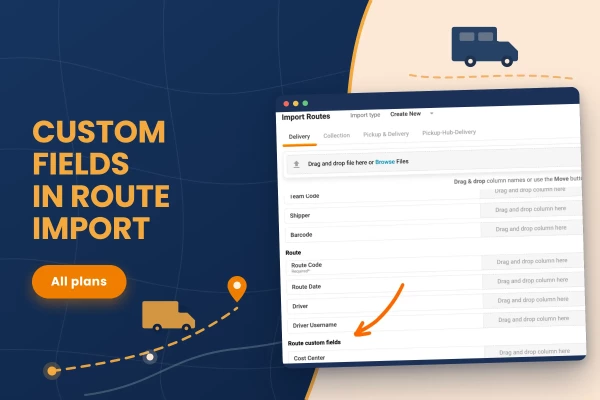
Route import in Track-POD now supports route custom fields. Map a column from your file onto any field you have configured for routes, and the values arrive with the import. Available on all plans.
Read More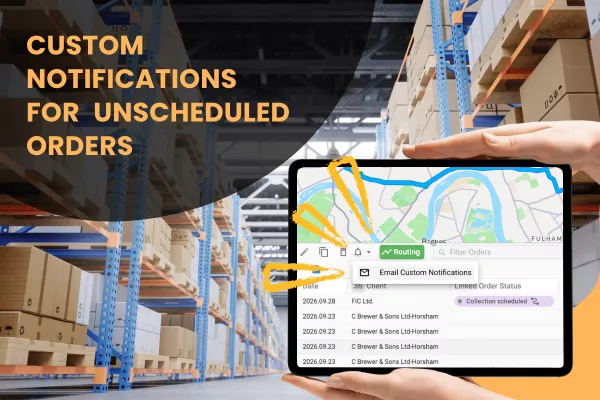
Custom SMS and email notifications can now be sent to unscheduled orders, up to 100 at a time, using the same templates already available for routes. Available on all plans.
Read More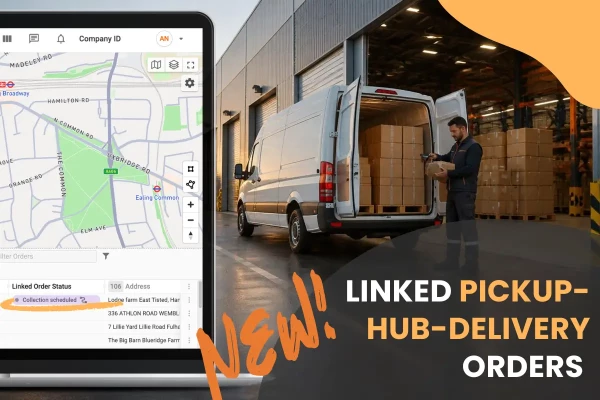
The pickup and delivery legs of a Pickup-Hub-Delivery order are now linked in Track-POD. A new Linked Order Status column shows where the paired order is, so dispatchers know when goods have reached the hub. Available on all plans.
Read More