- Route Planning
- Product news
Rates & Billing: Rates, Surcharges and Taxes

by
Anton Ananich
October 26, 2026
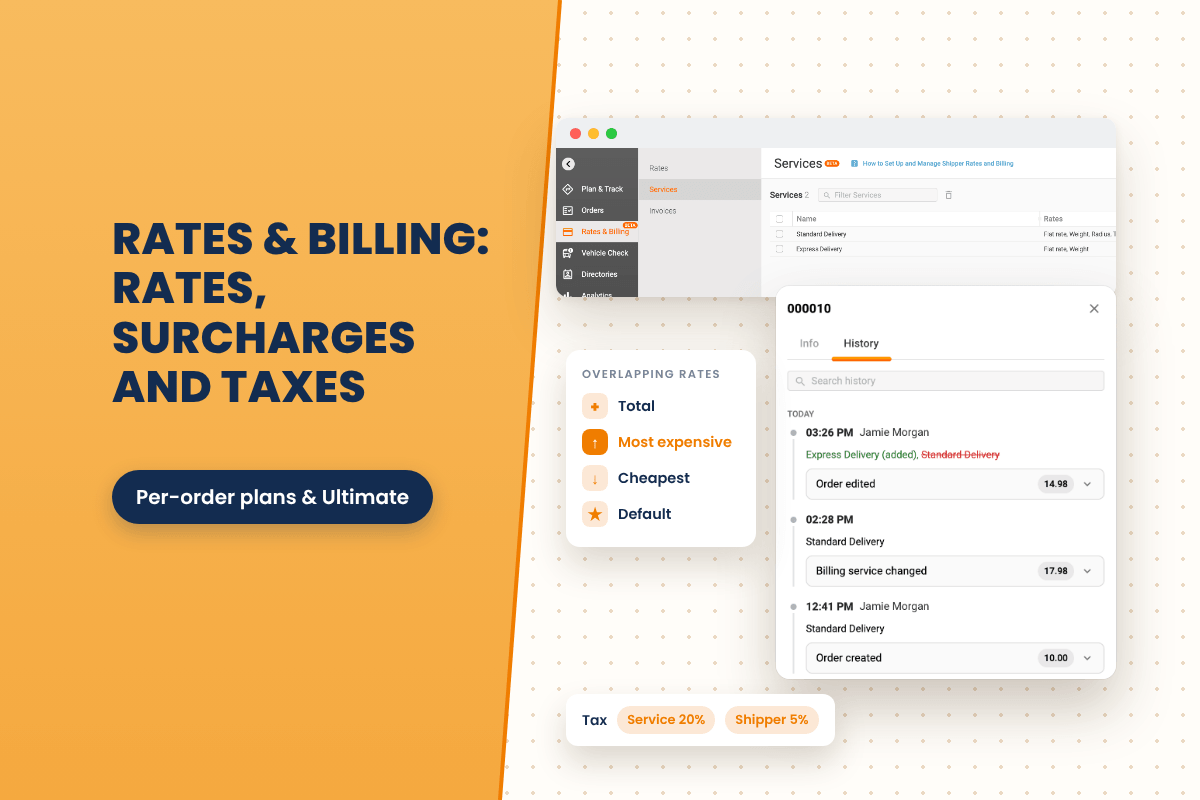
We have introduced Rates & Billing, the Track-POD feature that prices every delivery from your own rules. This part takes a closer, in-depth look at how those rules work. It goes through how each type of rate counts, how surcharges and fee limits work, what happens when two services price the same thing, how taxes are added, and when a charge can still change. Every rule comes with a worked example, so you can check your own price list against it before you go live.
Rates & Billing is available on all per-order plans and on the per-driver Ultimate plan, and is currently in beta.
Per-unit and tiered rates
When you create a weight, volume, distance, quantity, price-of-goods or pallet rate in Rates & Billing → Rates, you choose how it counts.
Per unit. You set a price for each kilogram, kilometre or item. To give a free allowance, use the First N setting on the same rate.
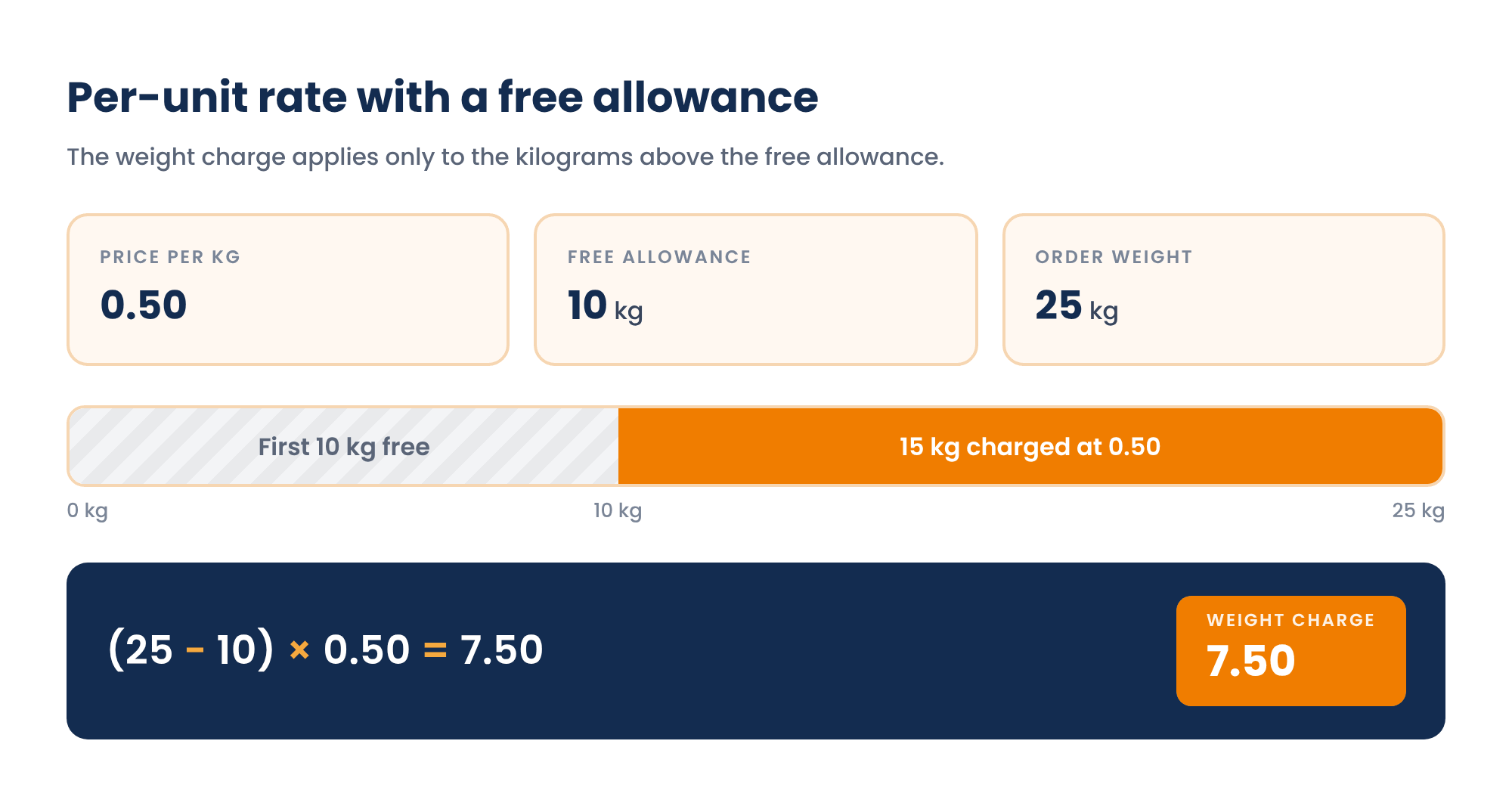
Tiered. You set fixed prices for ranges, and the order pays the price of the range it falls into.
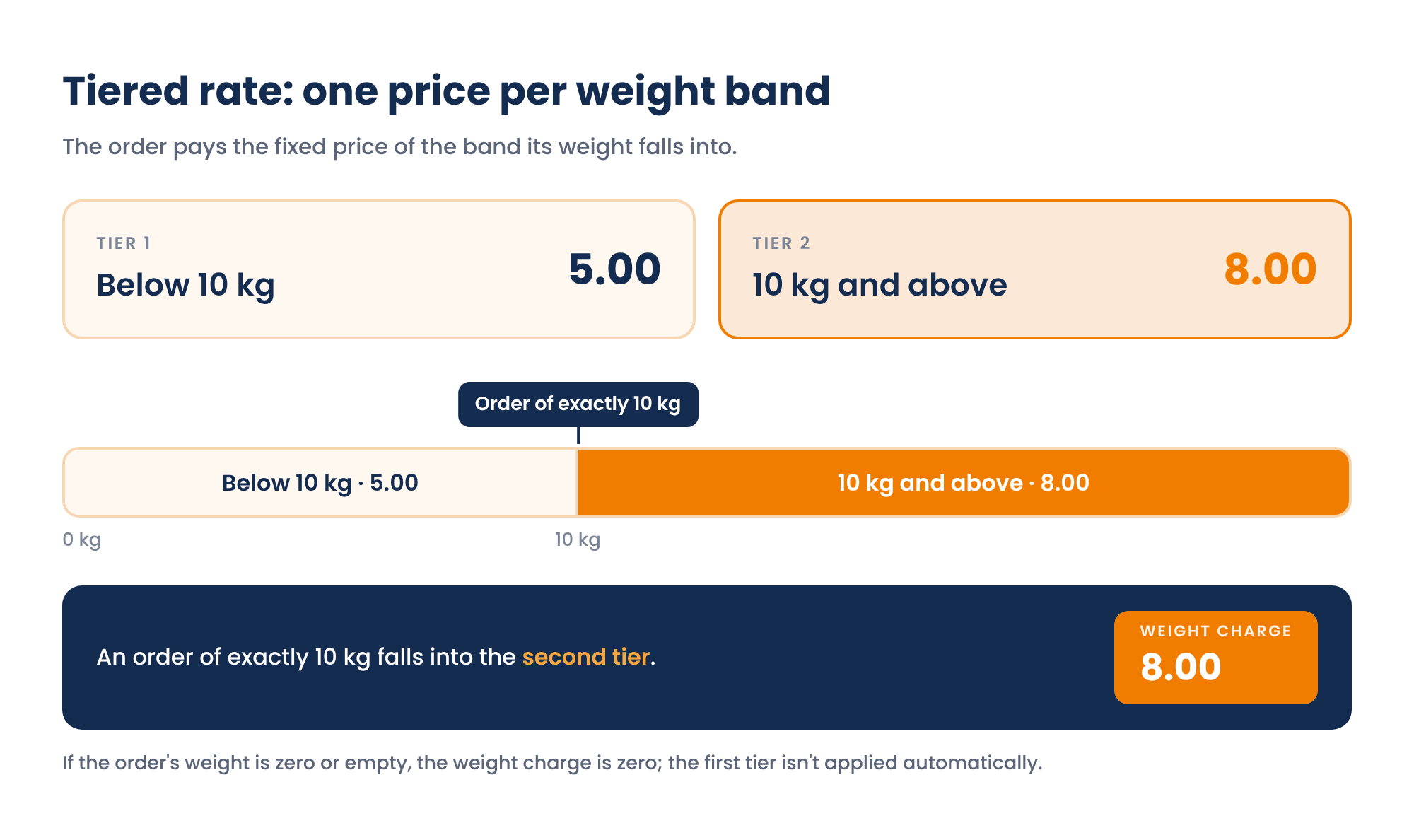
An order of exactly 10 kg falls into the second tier and costs 8.00. If a free allowance is also set, the allowance is subtracted first and the tier is chosen from what's left.
One thing to watch: if an order's weight is zero or empty, the weight charge is zero. The first tier isn't applied by default, so orders need their weights filled in for a weight rate to work. Distance is measured in a straight line from the depot to the delivery address.
Flat rates, surcharges and fee limits
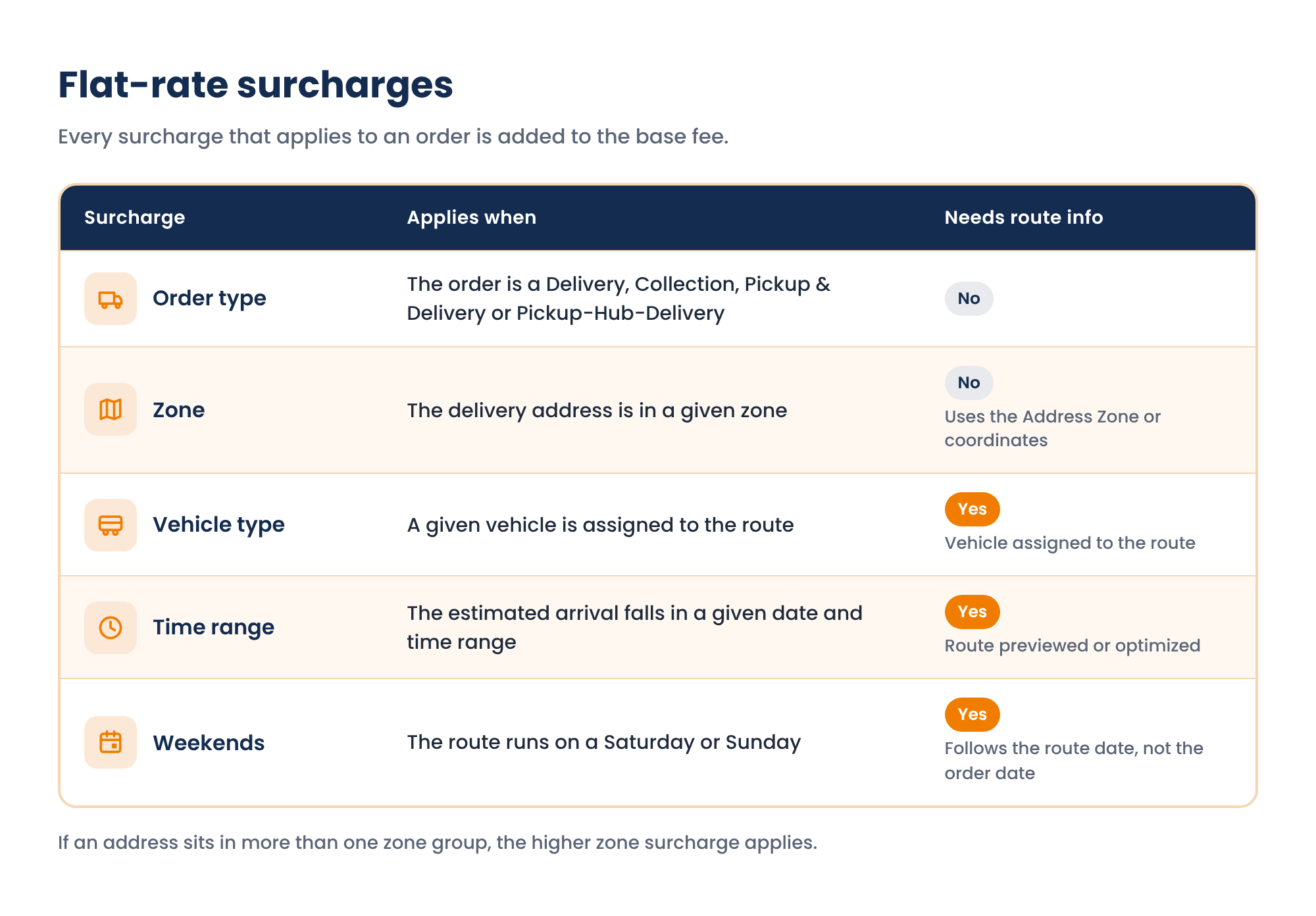
A flat rate is a base fee per order. To set one up, go to Rates & Billing → Rates, create a rate of the Flat rate type, and add any surcharges and fee limits on that same rate. Every surcharge that applies to an order is added to the base fee.
A flat rate can also have a minimum and a maximum fee. Here is how they interact with a weekend surcharge:
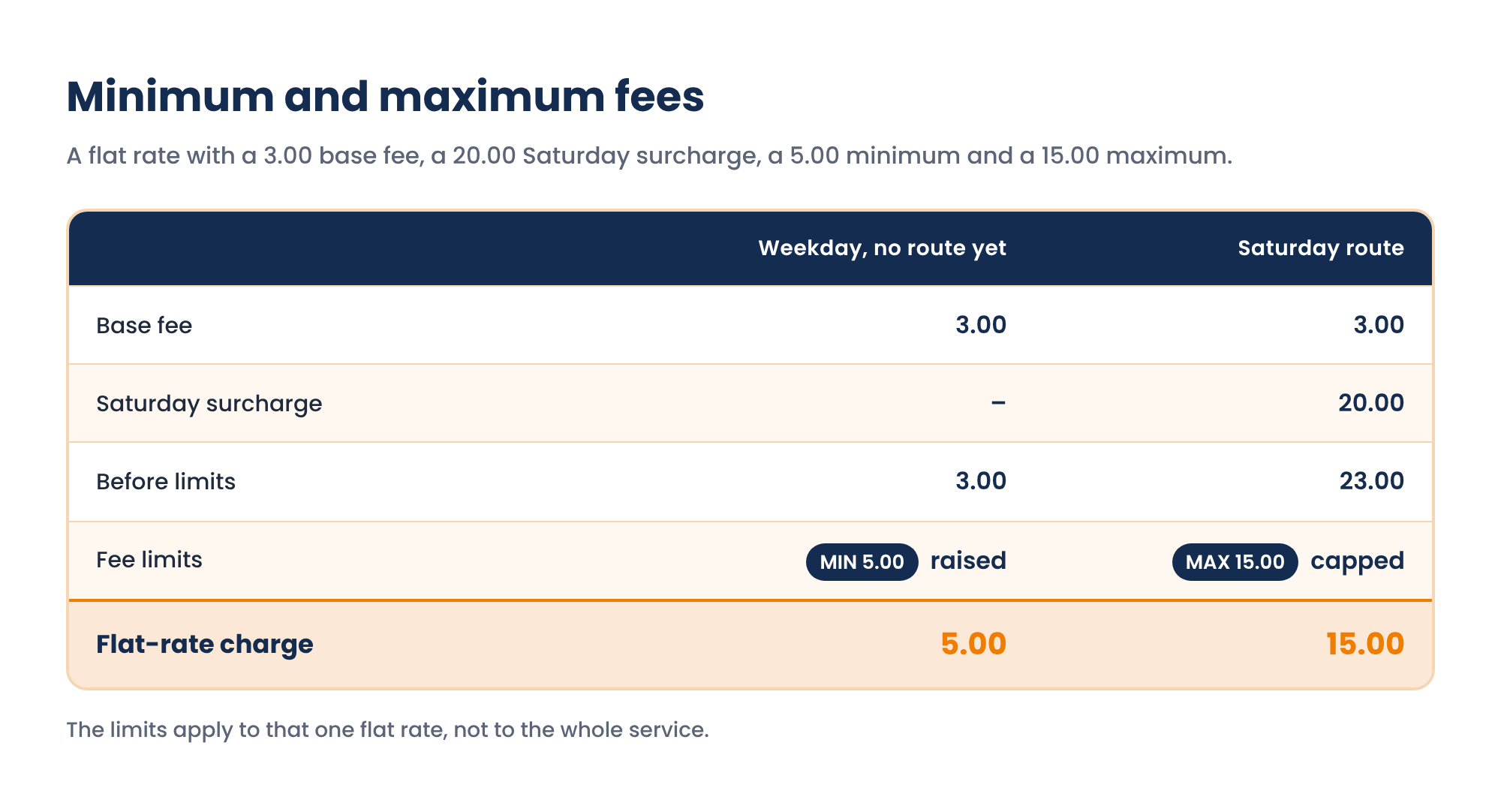
The limits apply to that one flat rate, not to the whole service.
Several surcharges depend on the route, so they only appear once the order is planned:
- Weekend surcharges follow the route date, not the order date.
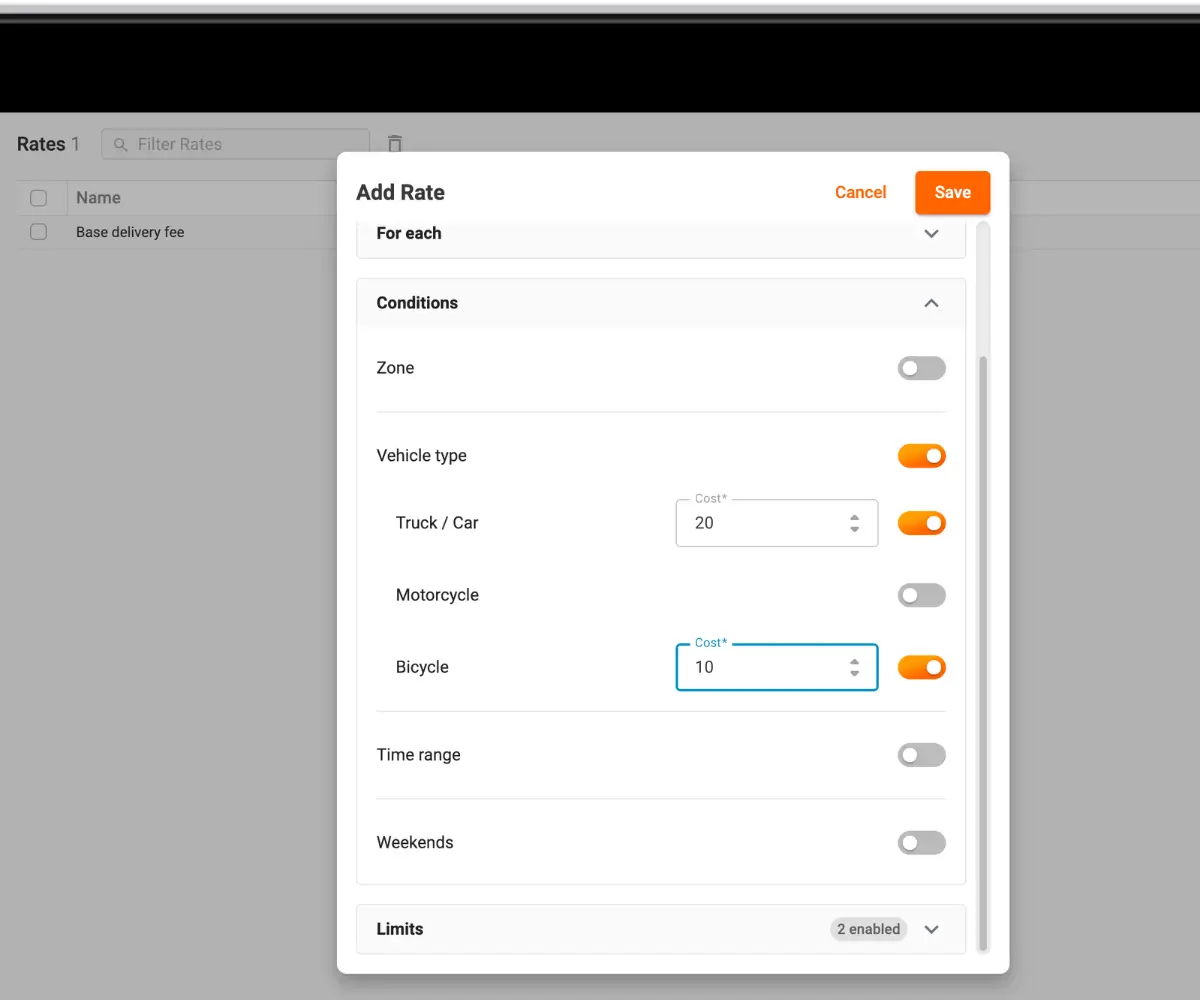
- Vehicle surcharges follow the vehicle assigned to the route.
- Time-range surcharges need an estimated arrival time, so the route has to be previewed or optimized first.
- Zone surcharges use the order's Address Zone or its coordinates. If the address sits in more than one zone group, the higher surcharge applies.
When two services price the same thing
To build a service, go to Rates & Billing → Services, create a service and add the rates it should include. A Standard Delivery service could be a 10.00 flat fee, 0.50 per kg after the first 10 kg, 1.00 per km and 20% tax. The same rate can sit in several services. Then assign the service in Directories → Shippers: open the shipper with the pencil icon, go to the Services tab, assign the services it should use and mark one as the default.
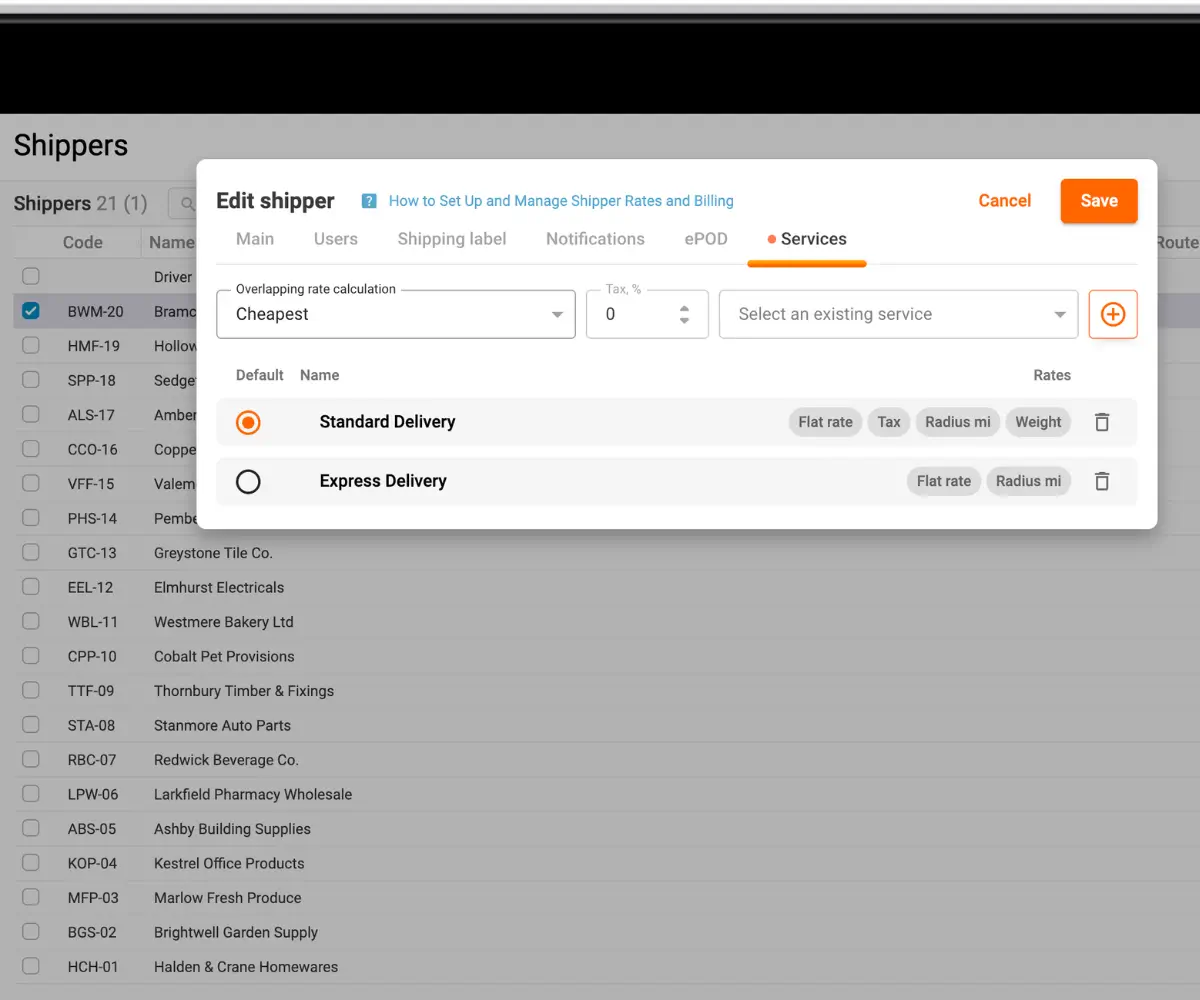
When an order uses more than one service, two of them may both contain, say, a flat rate. What happens then is set per shipper, on the same Services tab in Directories → Shippers, under overlapping rate calculation.
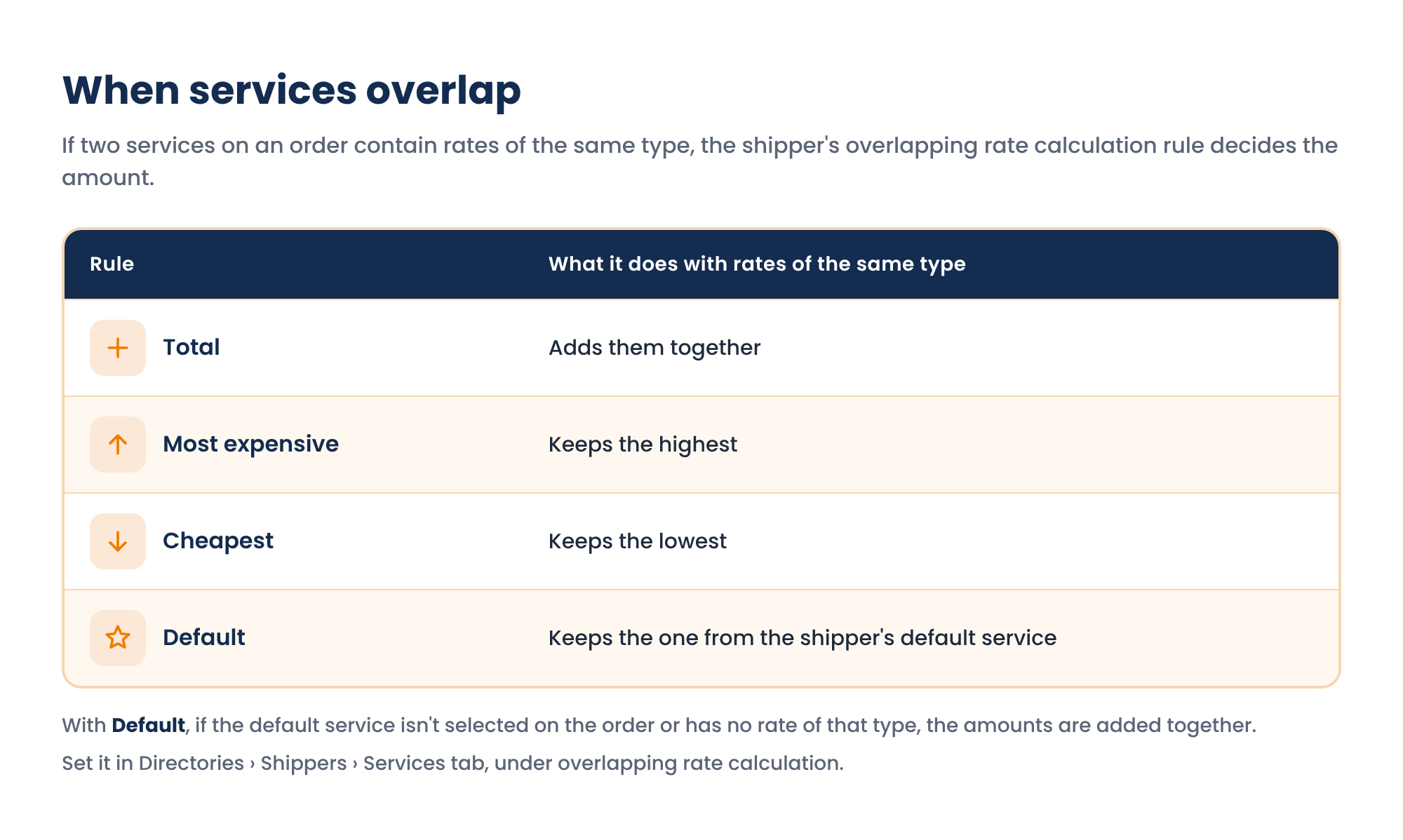
With Default, if the default service isn't selected on the order or has no rate of that type, the amounts are added together.
Take an order with two services selected: Standard Delivery (flat rate 10.00) and Express Delivery (flat rate 15.00 plus a 4.00 weight charge).
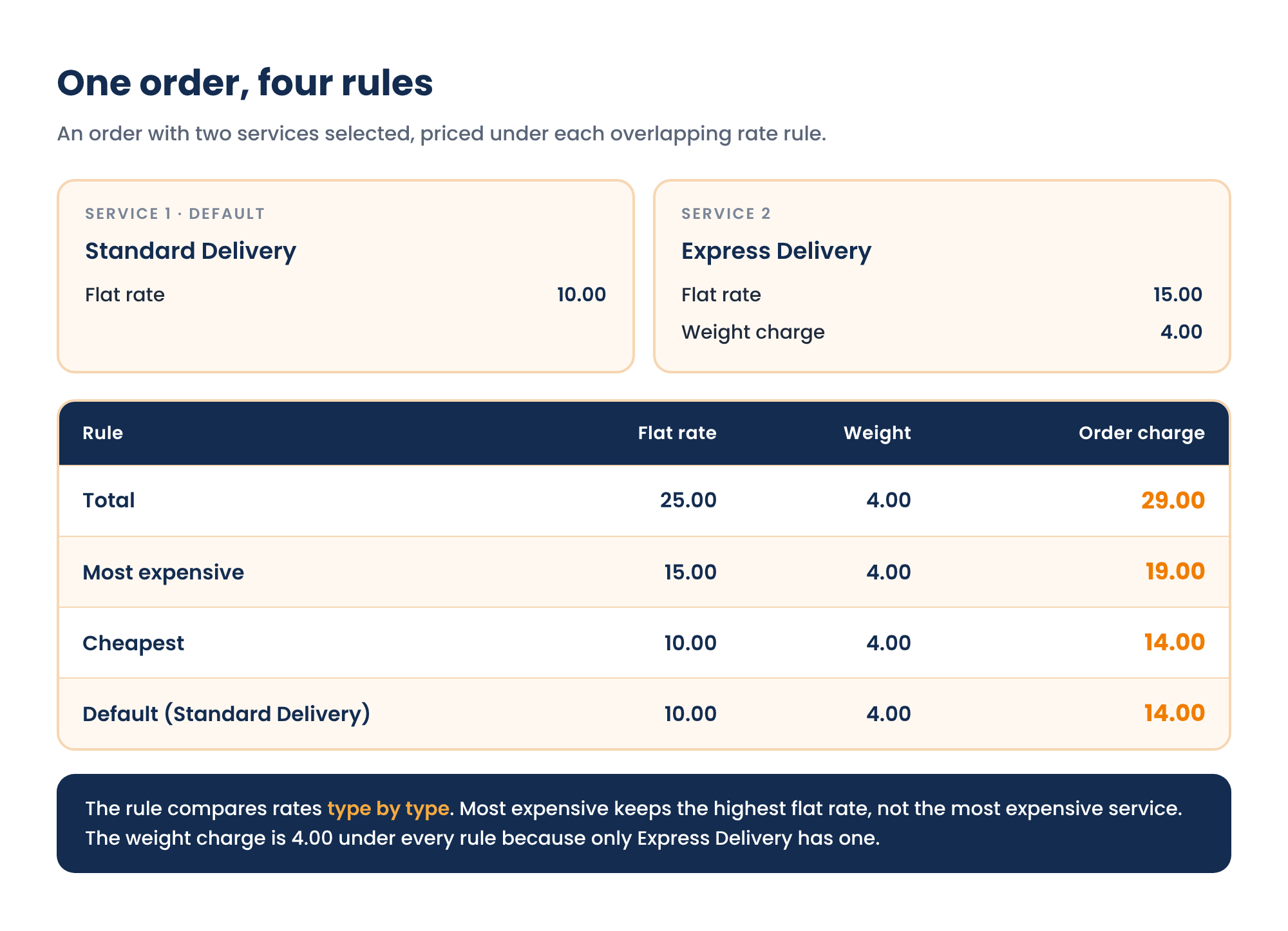
The rule compares rates type by type. Most expensive doesn't pick the most expensive service as a whole; it picks the highest flat rate, the highest weight charge and so on. The weight charge here is 4.00 under every rule because only Express has one.
Service tax, shipper tax and a full calculation
There are two places to add tax, and they can be used together.
- Service tax is a rate of the Tax type, created in Rates & Billing → Rates and added to a service in Rates & Billing → Services. It's a percentage of the other rates in that same service and doesn't touch rates in other services.
- Shipper tax is set per shipper in Directories → Shippers: open the shipper with the pencil icon, go to the Services tab and fill in Tax, %. It applies to the final order amount and shows as a separate TAX line in the breakdown.
Here is one order priced from start to finish: a Delivery order of 25 kg, 8 km from the depot. The service has a 10.00 flat rate with a 7.00 Delivery surcharge and a 20.00 Saturday surcharge, 0.50 per kg after the first 10 kg, 1.00 per km and 20% service tax. The shipper tax is 5%.
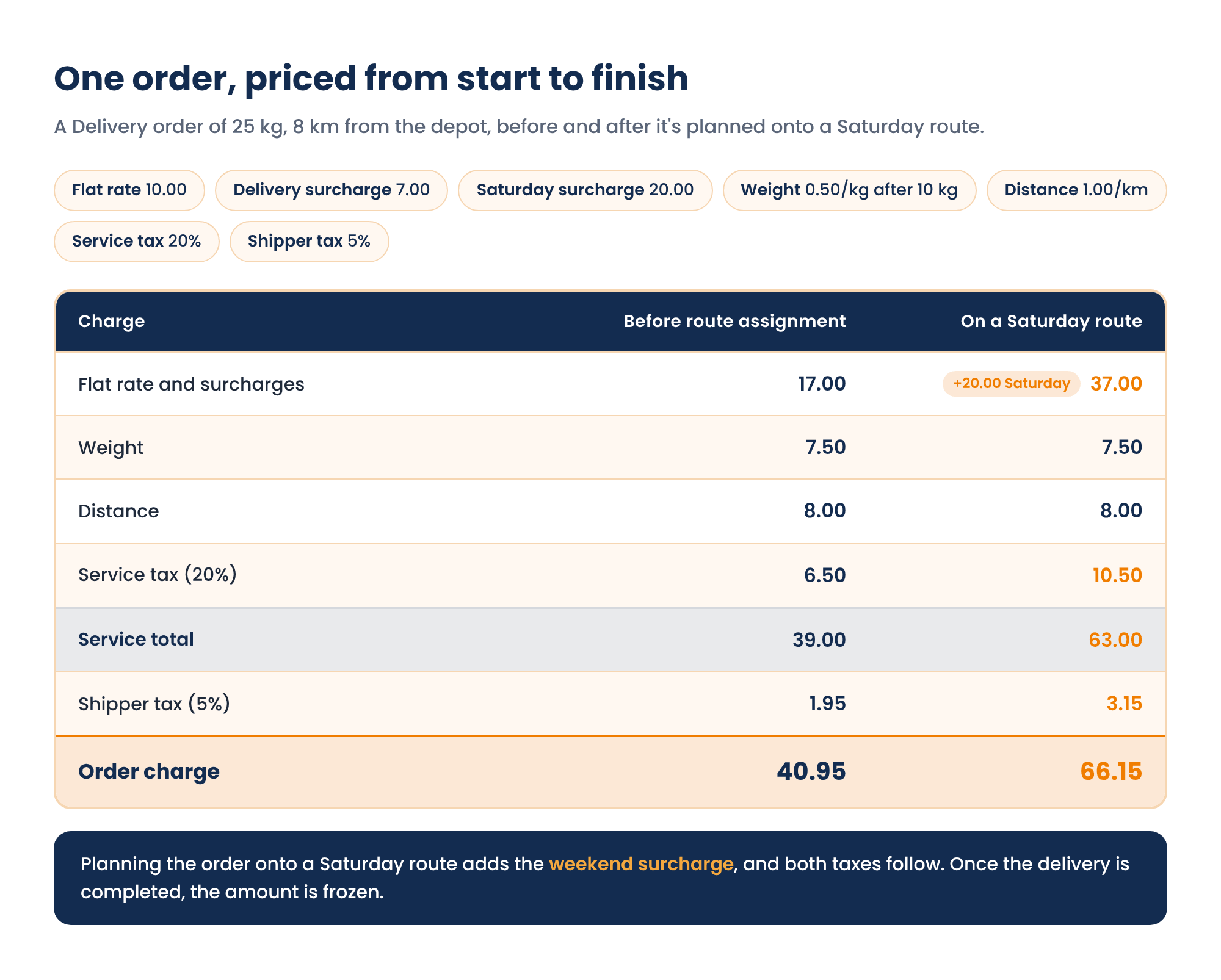
The order starts at 40.95. Once it's planned onto a Saturday route, the weekend surcharge applies and the charge becomes 66.15. When the delivery is completed, that amount is frozen.
Choosing services on an order
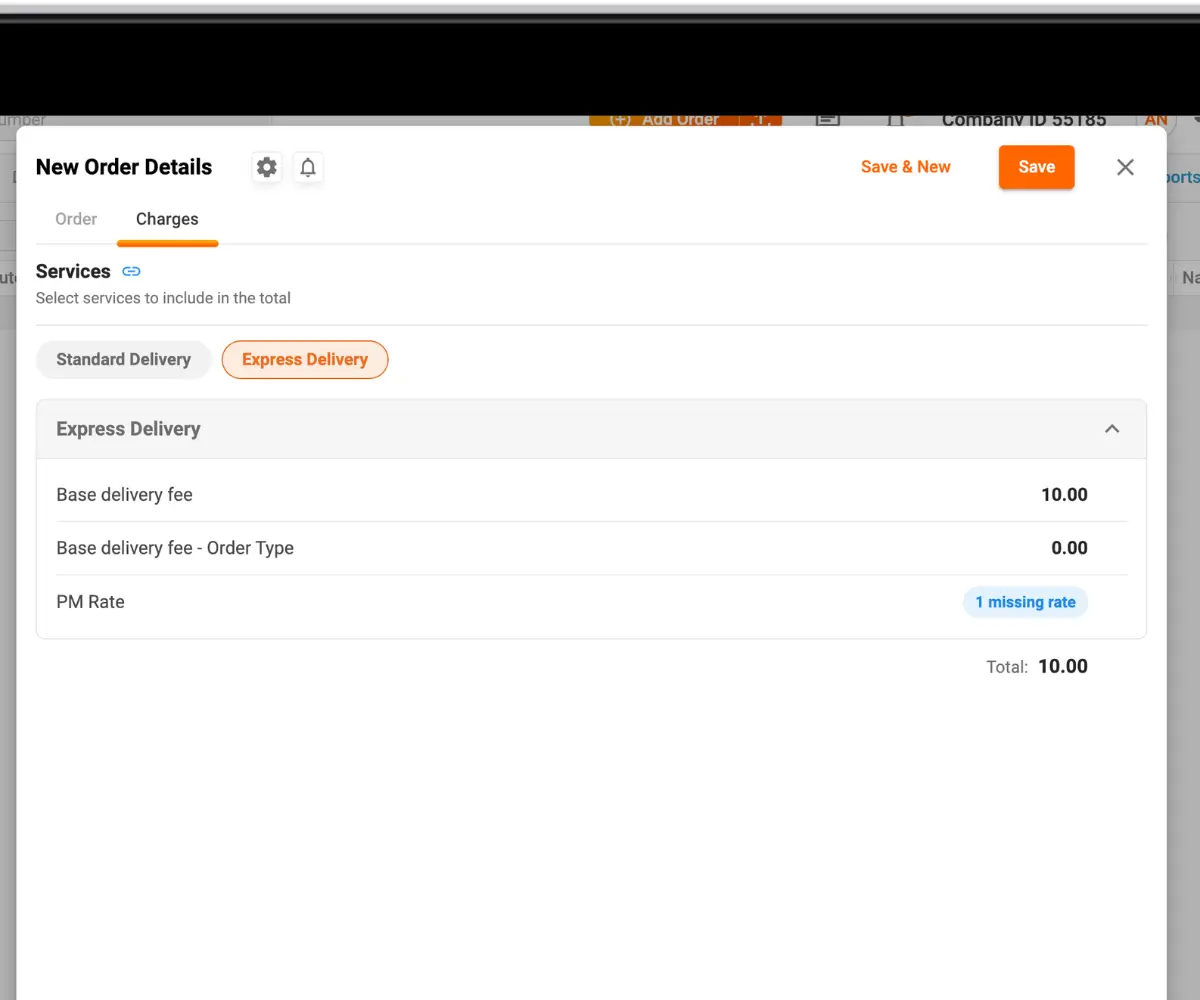
To see or change which services an order uses, open the order (or start a new one) and go to its Charges tab. It lists the services available to the order's shipper, with the selected ones highlighted in orange. Switch individual services on or off and the charge for each service and the order total update. The tab also flags any rate that can't be calculated yet because required information is missing.
To choose which services are pre-selected on every new order:
- Open the order window.
- Click the gear icon in its header and open New Order Settings.
- Find Select applicable service and choose an option: Default selects only the shipper's default service, All Services selects every service assigned to the shipper.
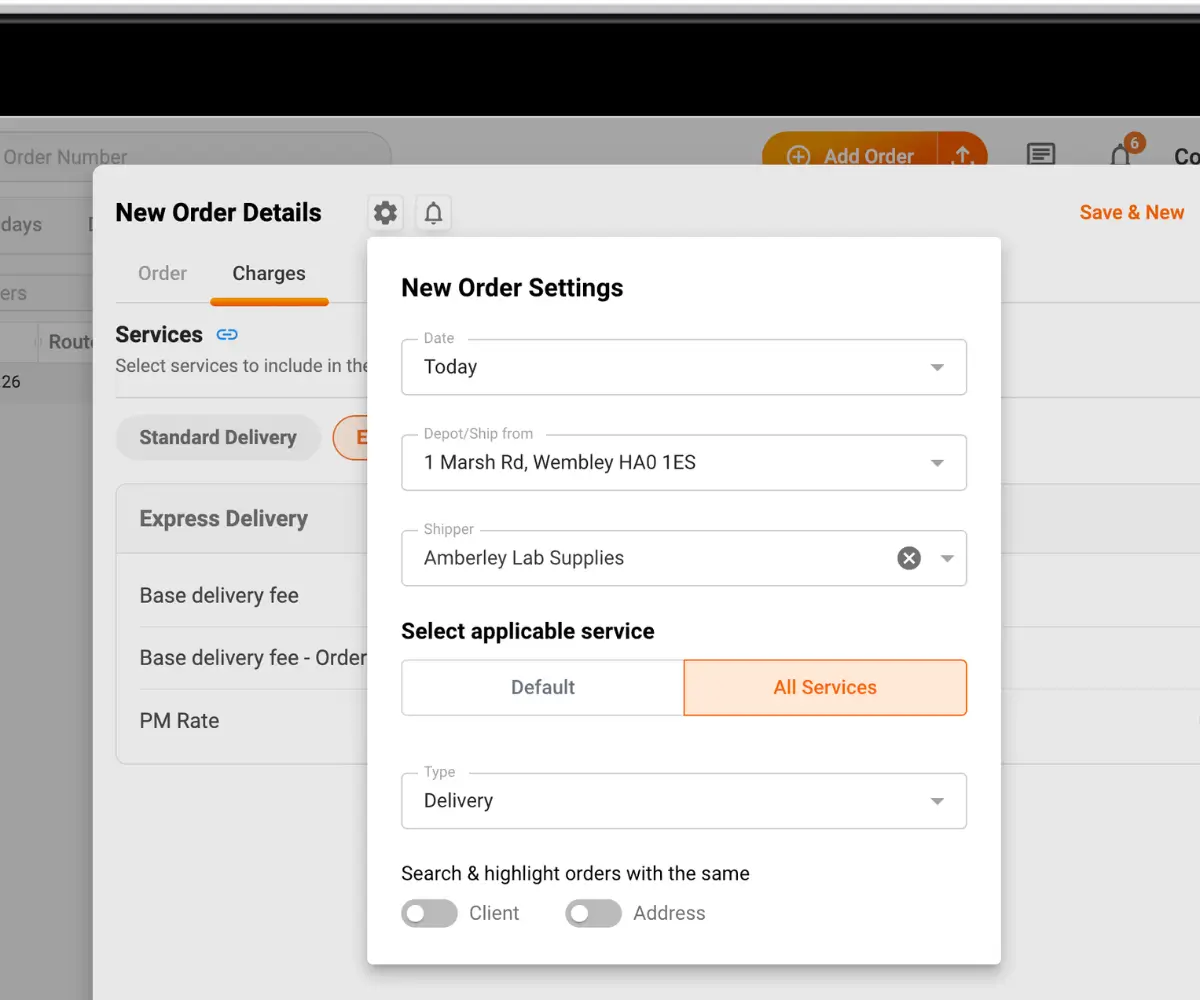
You can still change the selection by hand on the Charges tab of any order.
An order with no services selected isn't charged and doesn't appear in Invoices at first. If you remove all services from an order that already had a charge, it stays in Invoices at 0.00 and the change is recorded in its History.
When a charge changes, and when it stops changing
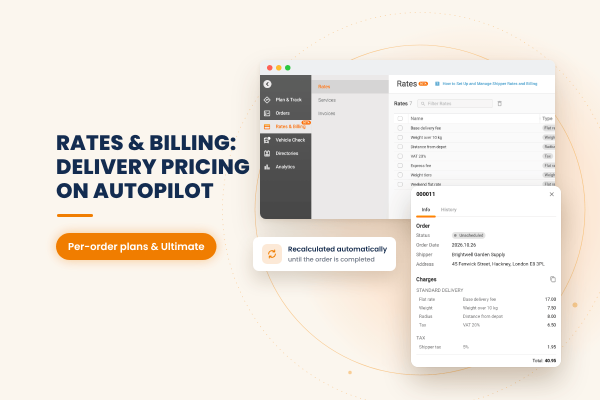
Until an order is completed, Track-POD recalculates its charge whenever something that feeds the price changes.
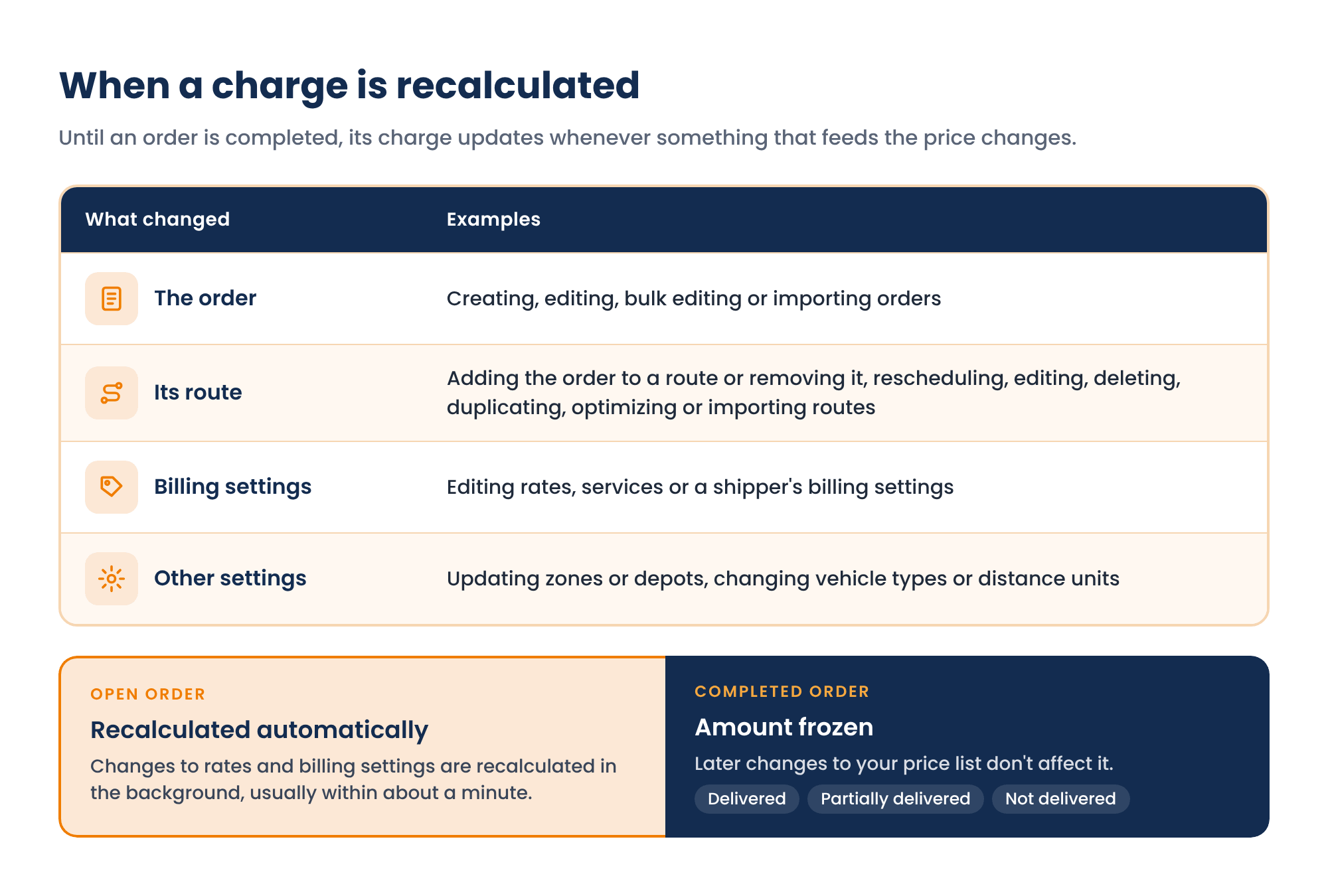
Changes to rates and billing settings are recalculated in the background and usually finish within about a minute. To check the new amount, open the order's Charges tab or find the order in Rates & Billing → Invoices.
Once an order is completed, as delivered, partially delivered or not delivered, its amount is frozen. Editing rates afterwards doesn't change charges for completed orders.
The flip side is that a price change reaches every open order that uses the edited rule. Review new prices before saving them, especially in the middle of a working day with many orders still on the road.
Reviewing charges in Invoices
Invoices is the report of everything that's been charged. To use it:
- Go to Rates & Billing → Invoices.
- Pick a period: today, the last 7 or 30 days, or a custom range.
- Choose which date the period refers to: Order Date, Route Date or Completion Date.
- Filter by shipper, order type, order status, depot, client or order number.
- Group the totals by day, week or month.
- Click Report to export the result to Excel.
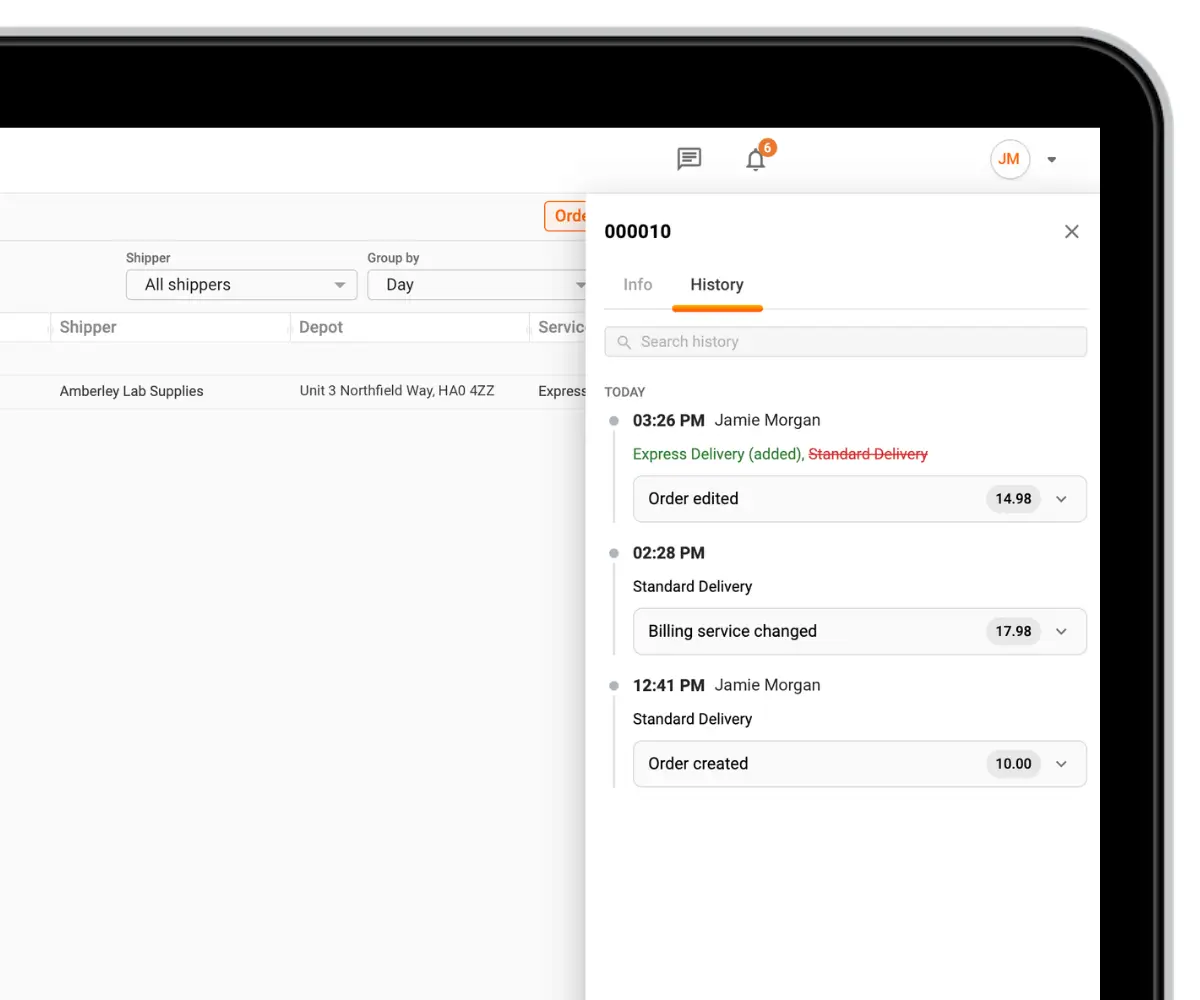
To see how one order's charge was built, click its order number in Invoices. The Info tab shows the order and shipper, the services applied, each rate with what it was calculated on, the tax breakdown and the total. The History tab lists every change to the amount: when it happened, what triggered the recalculation, the new total and, if a person made the change, who. Recalculations the system made on its own appear without an author, and a new History entry is added only when the amount actually changes.
Recap
Rates & Billing prices orders from eight rate types that count per unit or by tier. Flat rates take surcharges for order type, zone, vehicle, time range and weekends, within optional minimum and maximum fees. Services combine rates; when they overlap, each shipper's rule decides whether to add them, keep the highest or lowest, or use the default service. Service tax and shipper tax can both apply. Charges follow the order and its route until completion, then freeze, and every change is logged in Invoices. The feature is on all per-order plans and the per-driver Ultimate plan, in beta.