

Rates & Billing: Rates, Surcharges and Taxes
A closer look at Rates & Billing: the eight rate types, flat-rate surcharges, how overlapping services combine, how taxes stack, when charges are recalculated, and where to review them.
Read More
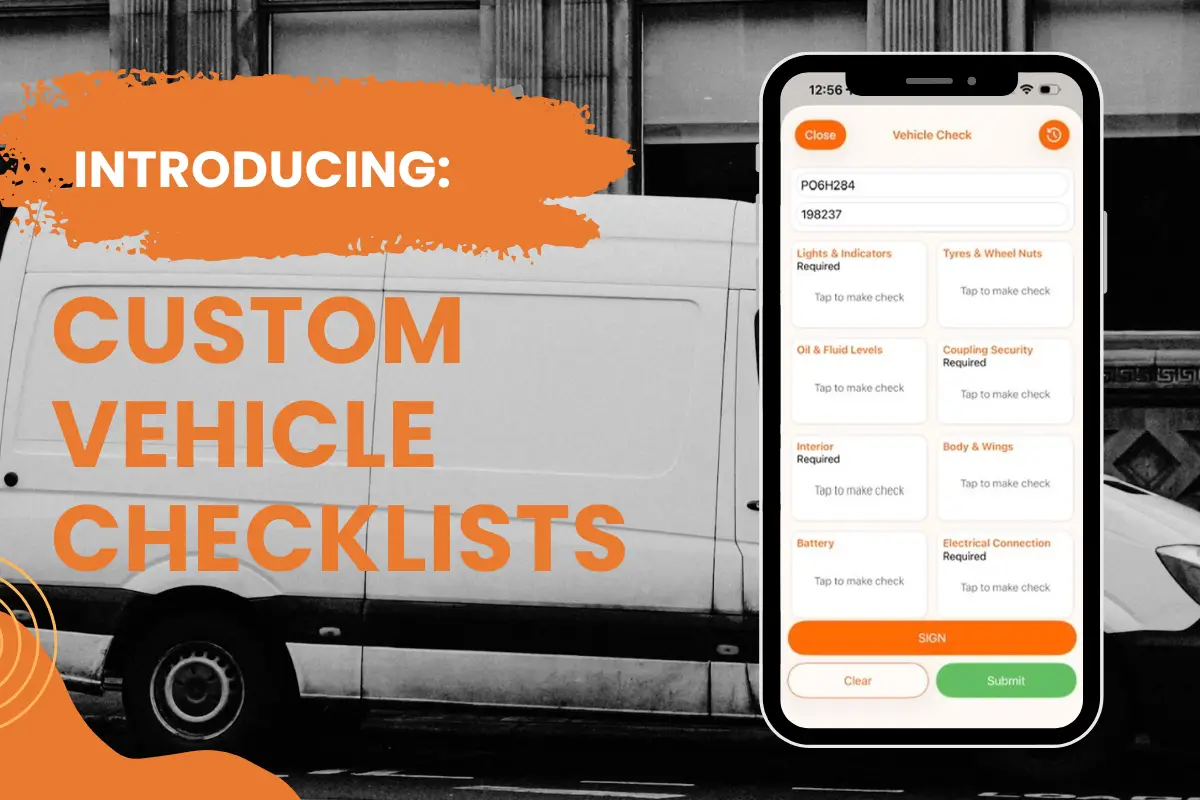
A driver taking out a refrigerated truck has more to inspect than a colleague in a standard van: the cooling unit has to hold its set temperature, and someone should record that before the first drop. Until now, Track-POD applied one checklist to the whole fleet, so a check like that ended up either on every driver's list or on nobody's.
The latest update adds custom checklist templates for Ultimate plan users. The global checklist stays in place for most of the fleet, and vehicles with specific requirements get a template of their own.
The vehicle check settings are now split across two tabs. Default holds the global checklist, which applies to every vehicle without a template of its own. If you're setting up checks for the first time, click Add default items in the top-right corner to load a standard set, adjust it as needed and click Save.
With Custom template tab, you can create as many checklists as your fleet needs, for example one for reefers, one for vehicles driven by subcontractors and one for vans with a tail lift.
Open Custom template tab and create a new template by clicking Add Checklist.
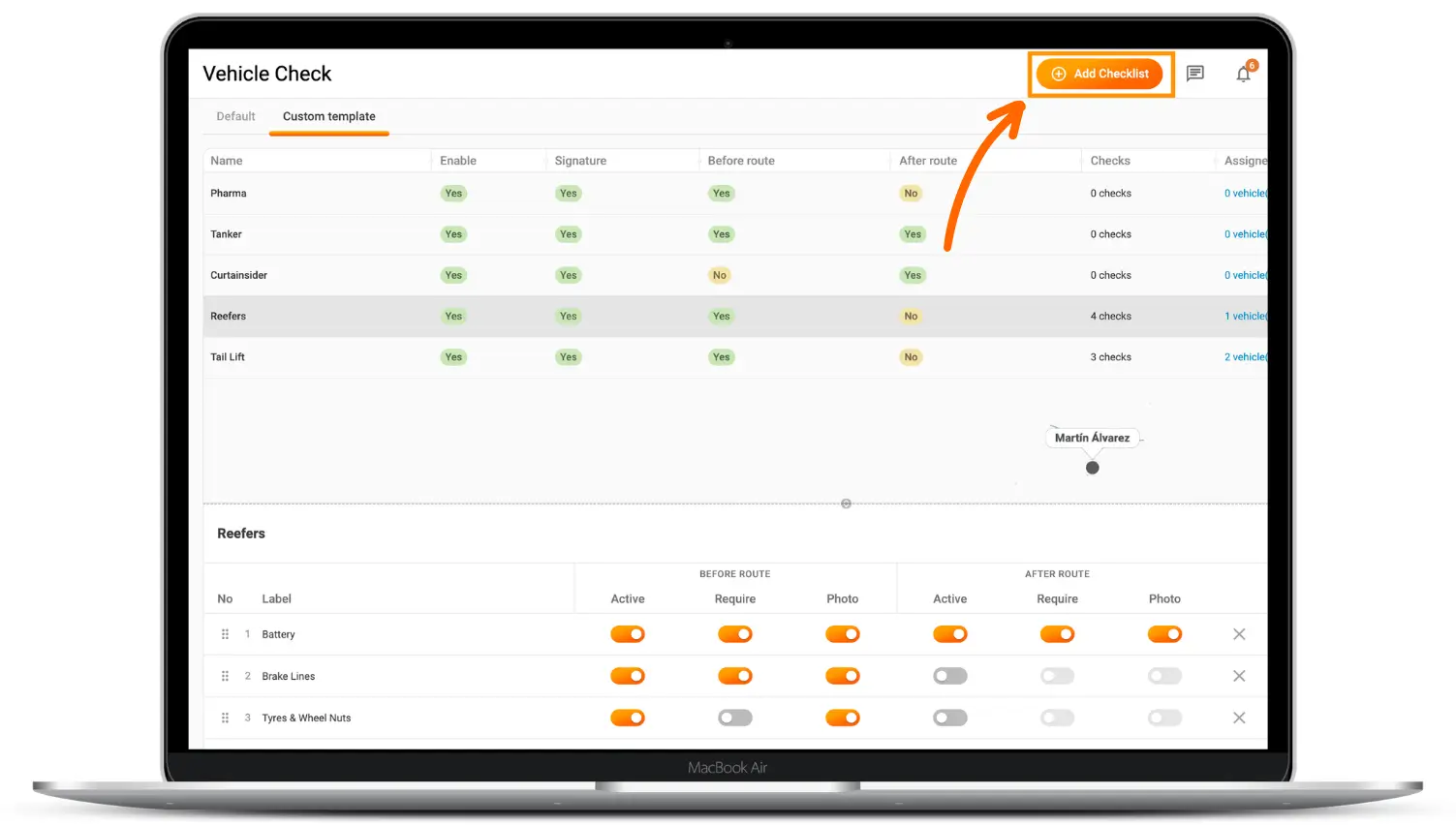
The table at the bottom lists every checklist item available in your account.
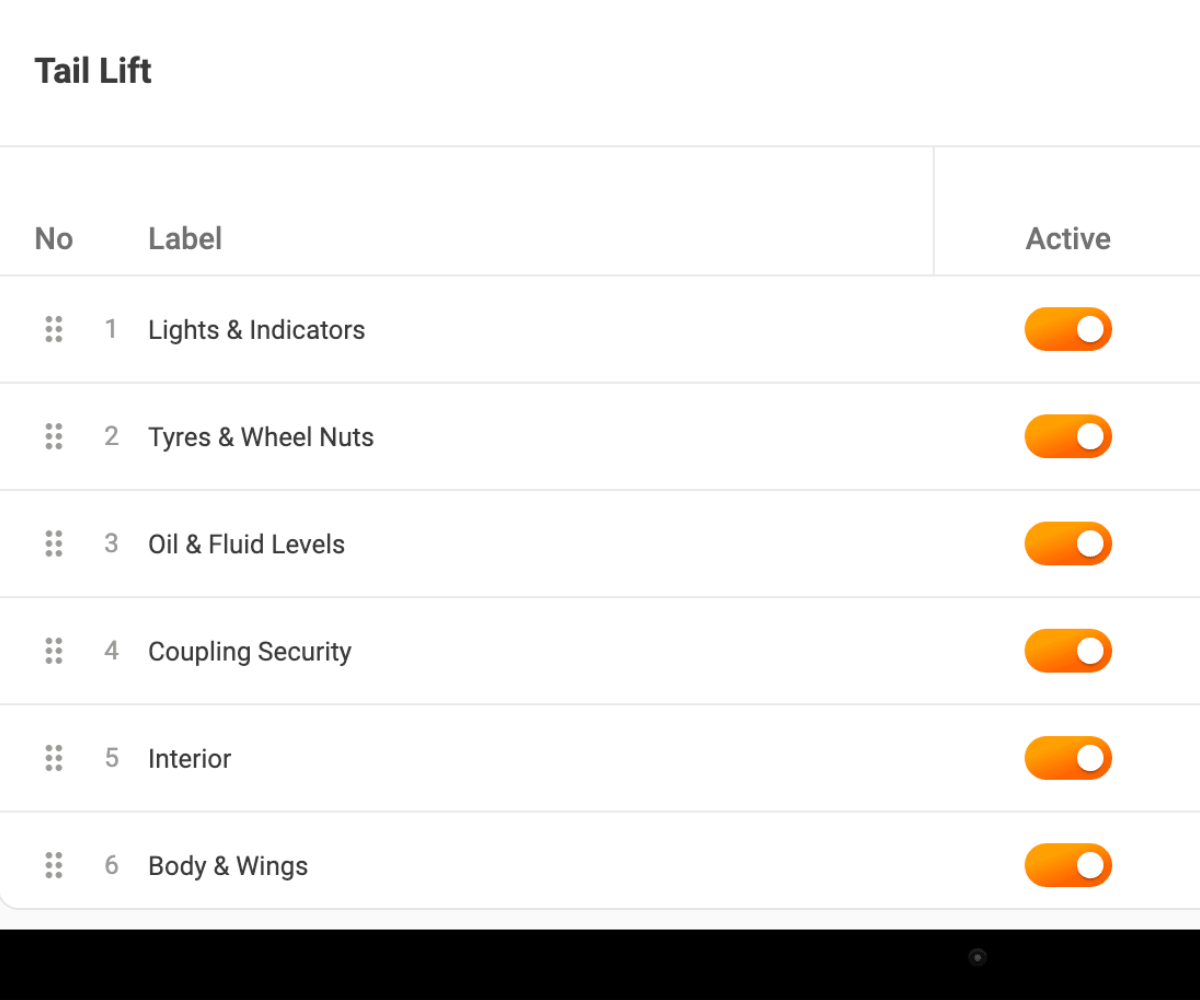
Move the ones this vehicle type needs into the template list, then set each item up for this template:
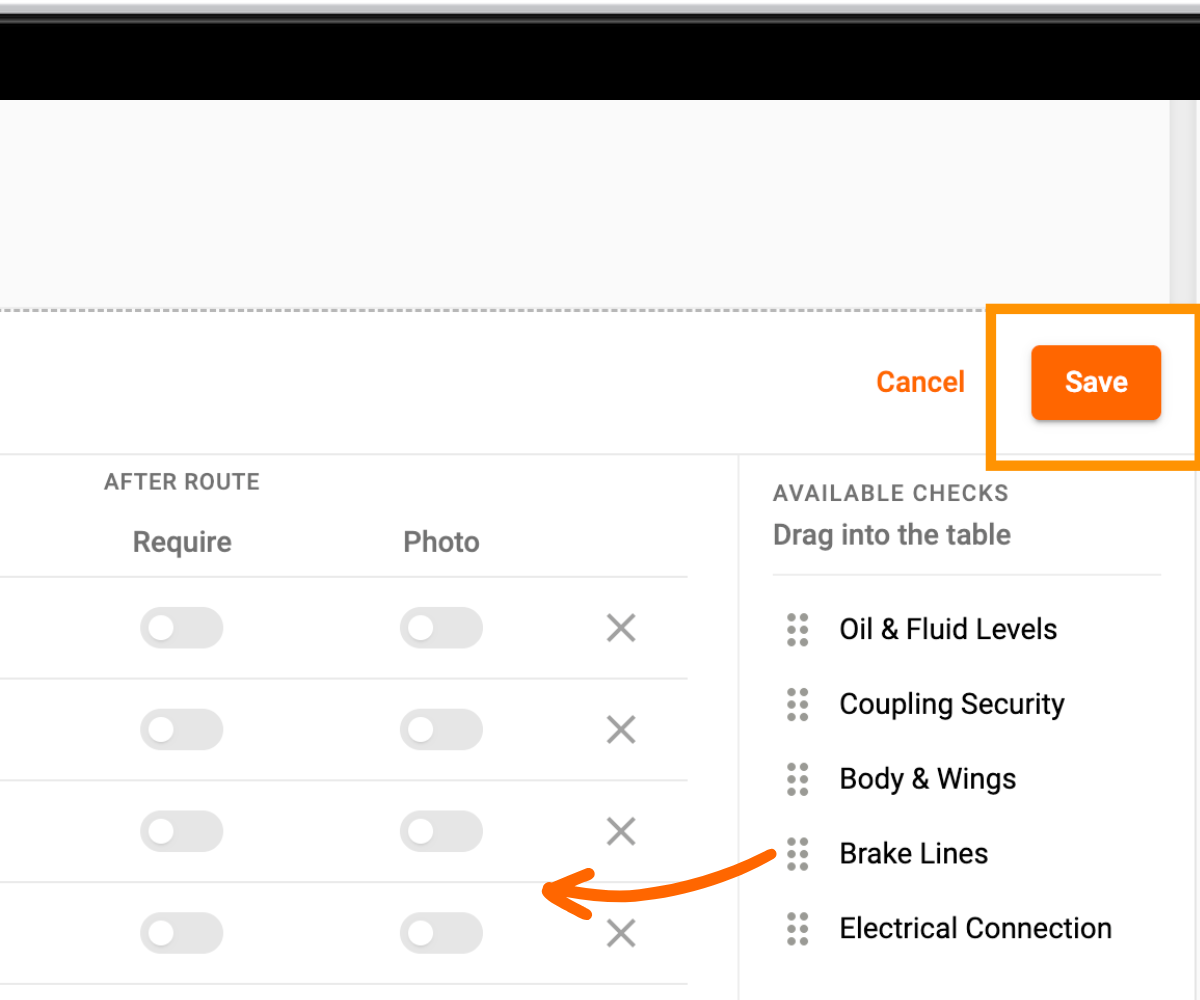
These settings belong to the template alone. An item that is optional on the global list can be mandatory in the reefer template and require a photo. Click Save in the lower right when you're done.
If an item doesn't exist yet, add it on the Default tab using the + button at the top. Items created there automatically appear in the available list of every custom template.
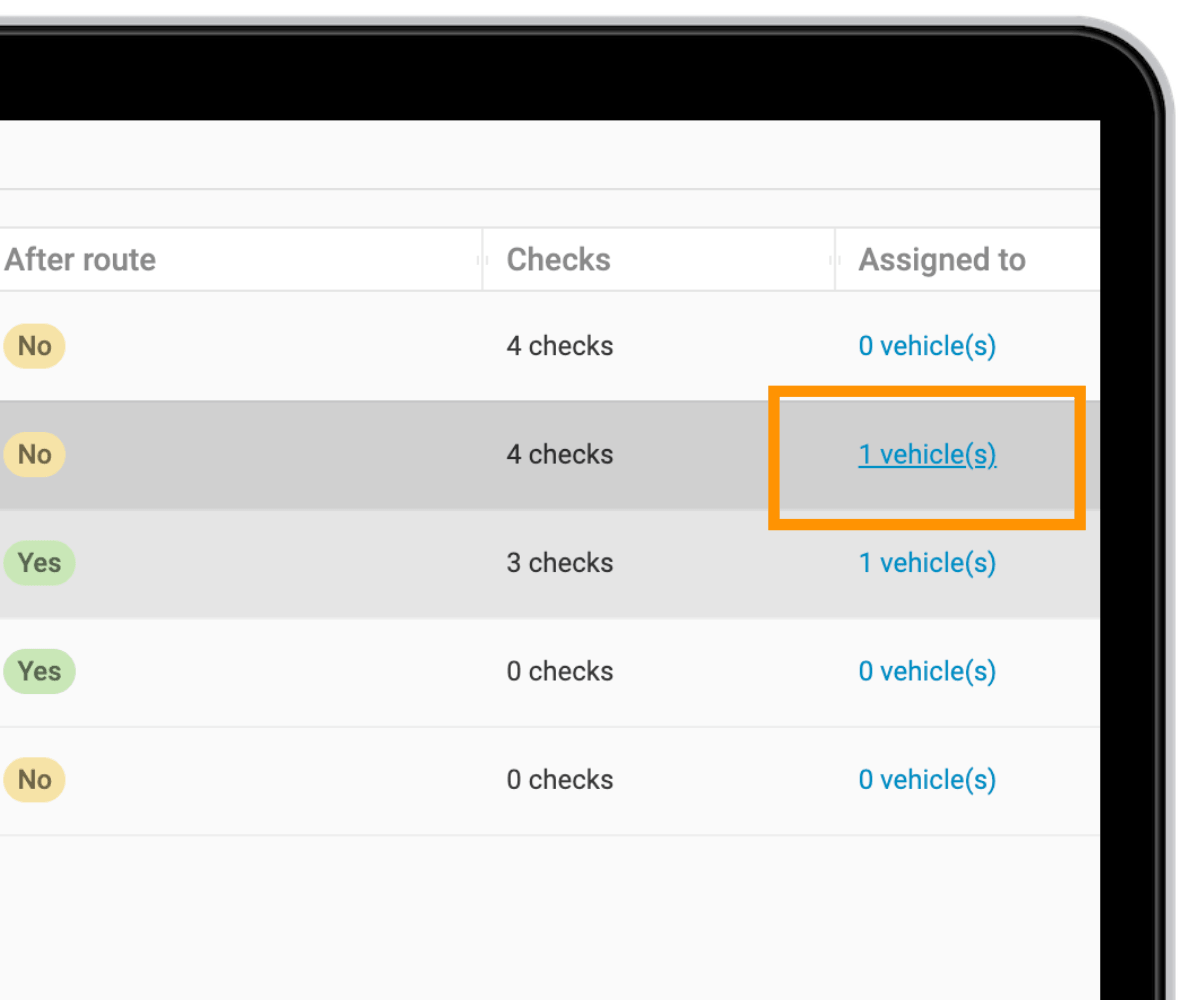
On the Custom templates tab, find the template you need and click the blue link in its row. For those vehicles, the template replaces the global checklist, while the rest of the fleet keeps the global one.
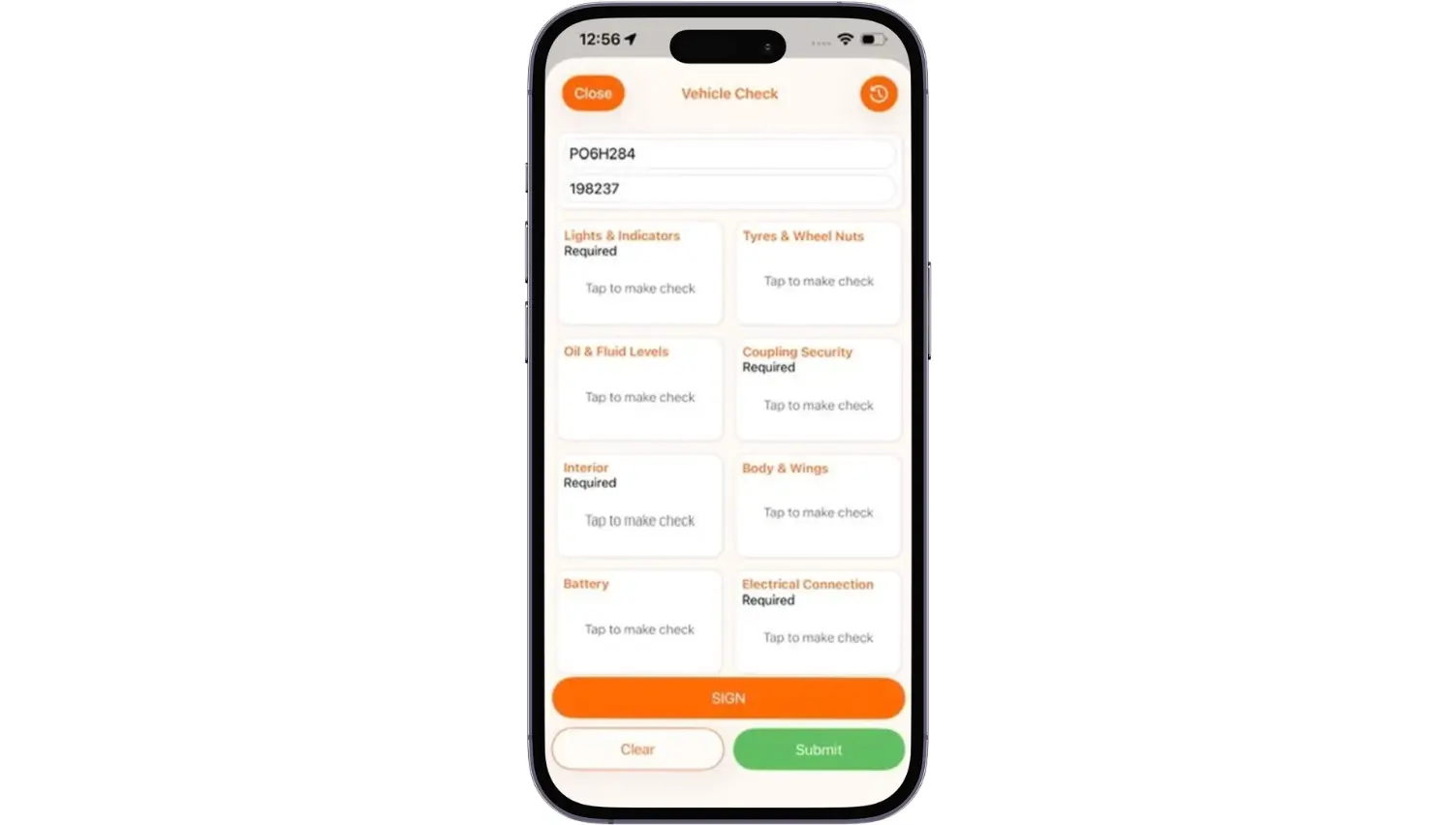
The driver's workflow stays the same. When a checklist is set to run before the route and contains mandatory items, the driver app opens it before the route can start, as it did before. What changes is the content: a driver in a vehicle with a template sees that template's items in the order you set, and the global list no longer appears for that vehicle.
Customers have been asking for vehicle-specific checklists for a while, and two setups come up most often.
Custom checklist templates let each group of vehicles run its own set of checks, with its own order, mandatory items and photo requirements. Build a template in Custom templates, assign it through Vehicles selected, and drivers of those vehicles will see it the next time they start a route.
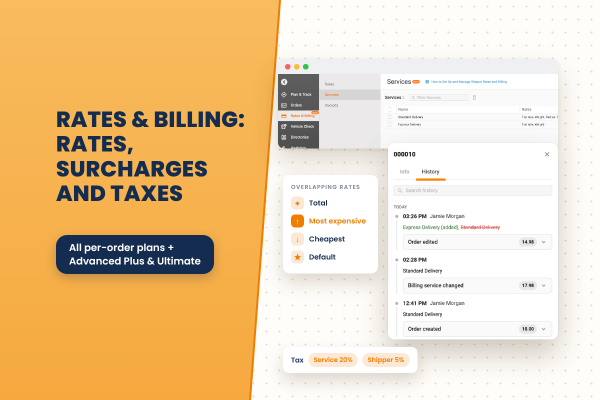
A closer look at Rates & Billing: the eight rate types, flat-rate surcharges, how overlapping services combine, how taxes stack, when charges are recalculated, and where to review them.
Read More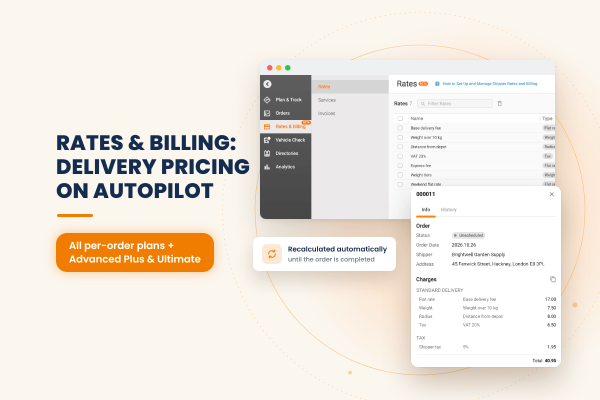
Track-POD now calculates delivery charges for you. Build pricing rules once, assign them to your shippers, and each order is priced automatically, updated as the order and its route change and frozen once it is completed.
Read More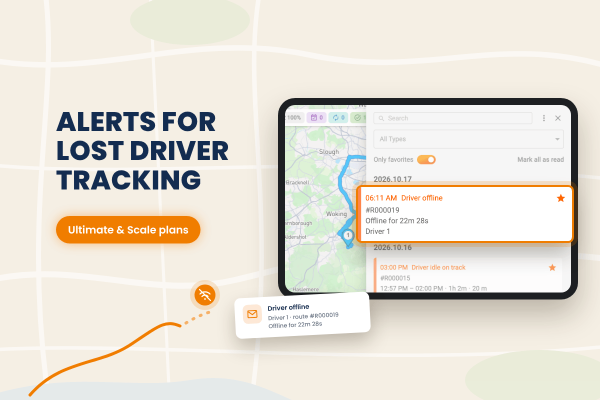
Track-POD now alerts dispatchers when a driver goes offline. You decide how long a driver can be idle or offline before the alert fires, and notifications can also arrive by email through your own mail service.
Read More