- Product news
- Route Planning
New in Track-POD: Order and Vehicle Dimensions

by
Anton Ananich
November 13, 2026
Weight and pallet limits tell you whether a load is too heavy for a van. They don't tell you whether a 5-metre pipe fits inside it. Companies that deliver building materials, furniture or appliances know the result: an order that looked fine on the plan turns out not to fit, and someone has to replan it at the depot or keep a mental list of which vehicle can take what.
Track-POD now plans for size as well as weight. Orders and vehicles have Length, Width and Height, and routing only assigns an order to a vehicle it fits in. Orders that don't fit any vehicle are shown to you before routing starts, so nothing is dropped without notice. The feature is available on the Advanced Plus and Ultimate per driver plans, and all per order plans.
Dimensions on orders and vehicles
Both orders and vehicles get a new Dimensions section with three fields: Length, Width and Height.
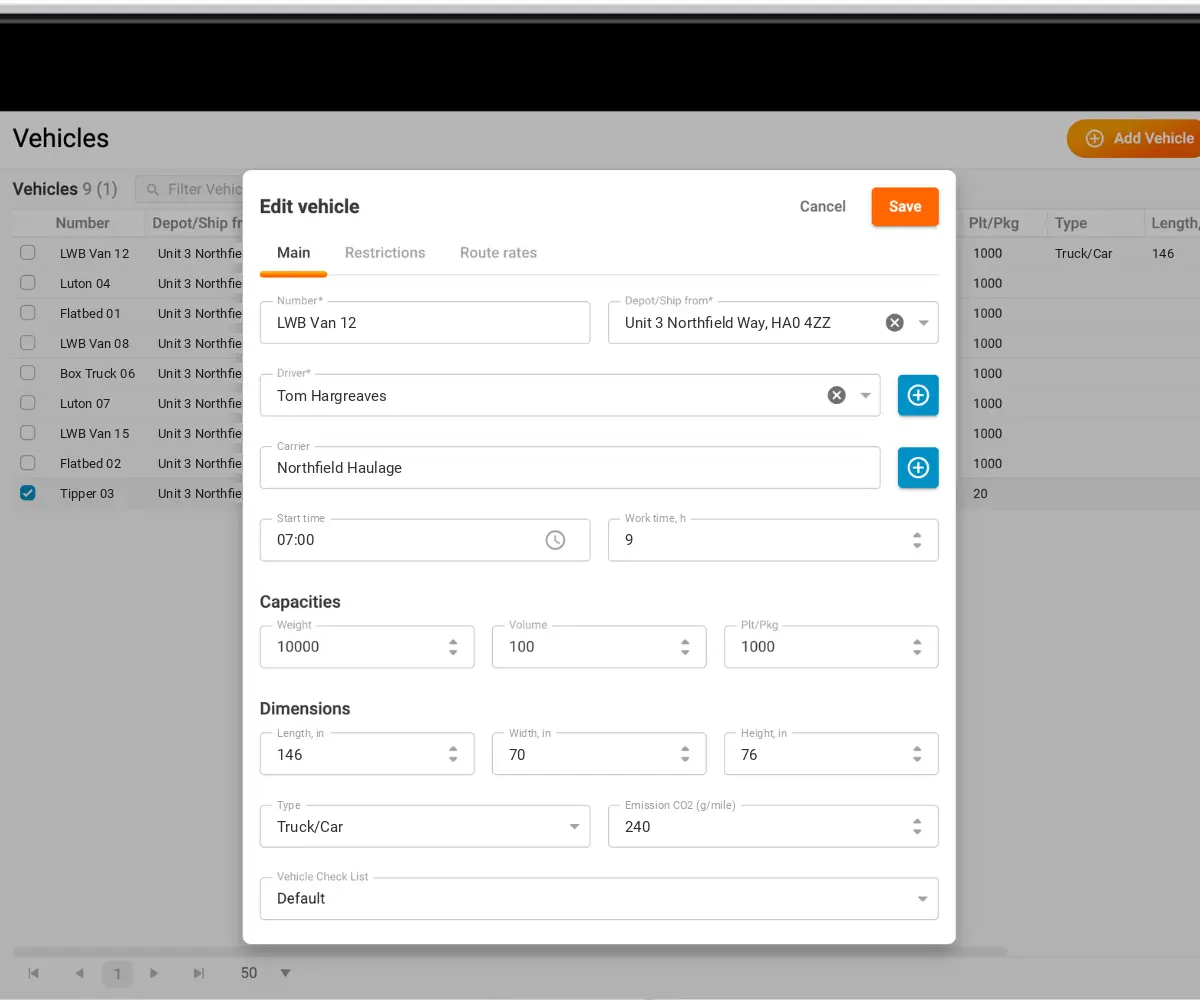
- On a vehicle, they describe the space it can take. Set them in the Add/Edit Vehicle window, in Directories → Vehicles.
- On an order, they describe the size of the whole order. Fill them in the Add/Edit Order window. Track-POD doesn't calculate them from the individual items.
- Customers who log in to Track-POD can see and fill in the same fields on their own orders, so the size comes straight from the people who know it.
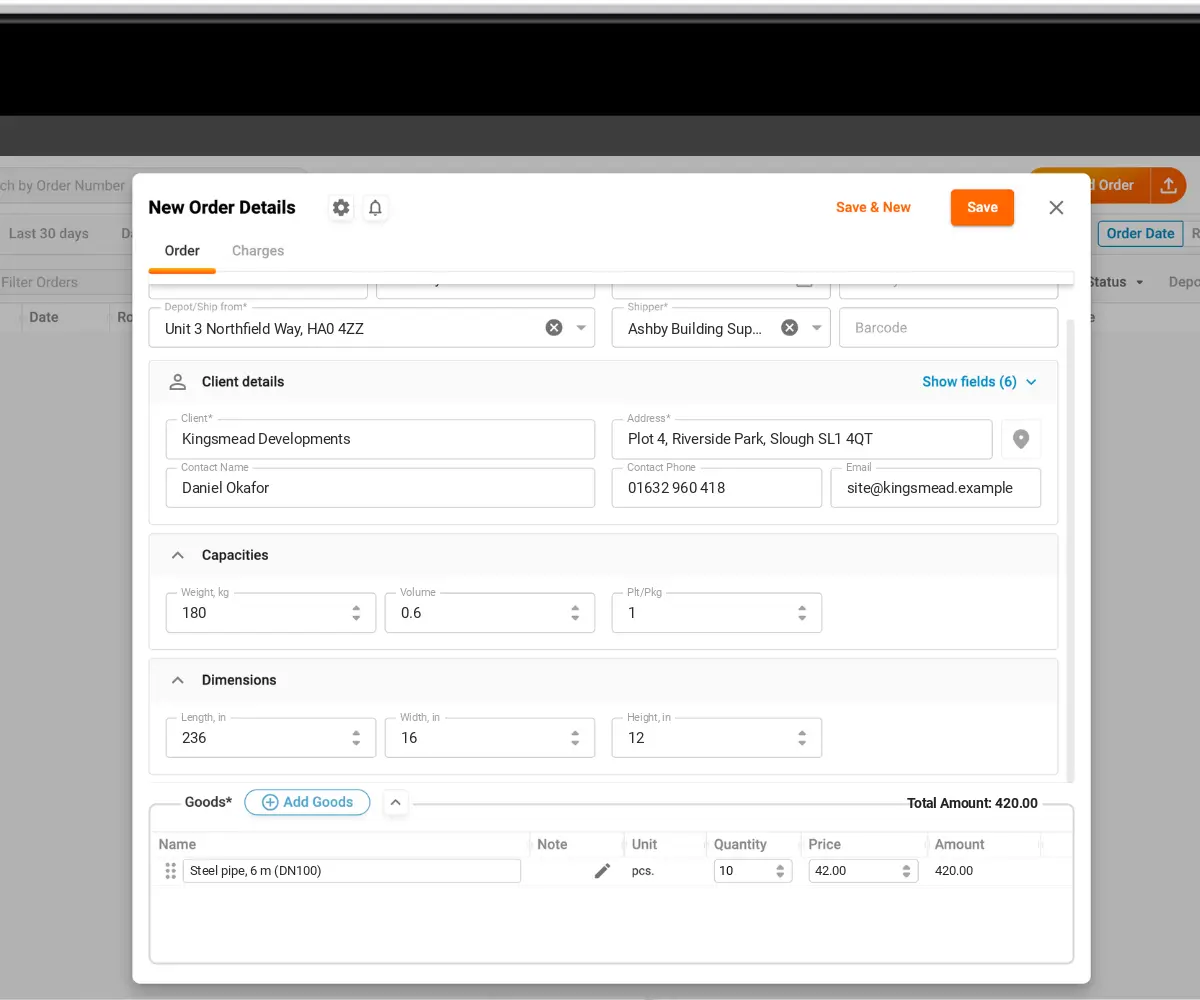
The values are plain numbers with no units, so use the same unit for orders and vehicles across your account. All three fields are optional: an empty value or 0 means no limit, and a vehicle without dimensions accepts any order.
How routing uses dimensions
When you run Routing, Track-POD only assigns an order to a vehicle it fits in on all three measurements. Each dimension is checked on its own: a long, narrow load needs a vehicle that is long enough, even if its width is no problem. Volume is still handled by the existing capacity fields. The same rules apply to Delivery, Collection and Pickup & Delivery orders.
Dimensions apply to Routing only. Optimize and Calculate ETA don't check them, so if a dispatcher moves an order by hand, their decision stands. A dispatcher can still put an order into a vehicle it doesn't fit by hand. Nothing is blocked and no warning appears, and changing the vehicle on an existing route rechecks the fit without blocking anything.
Orders that don't fit any vehicle
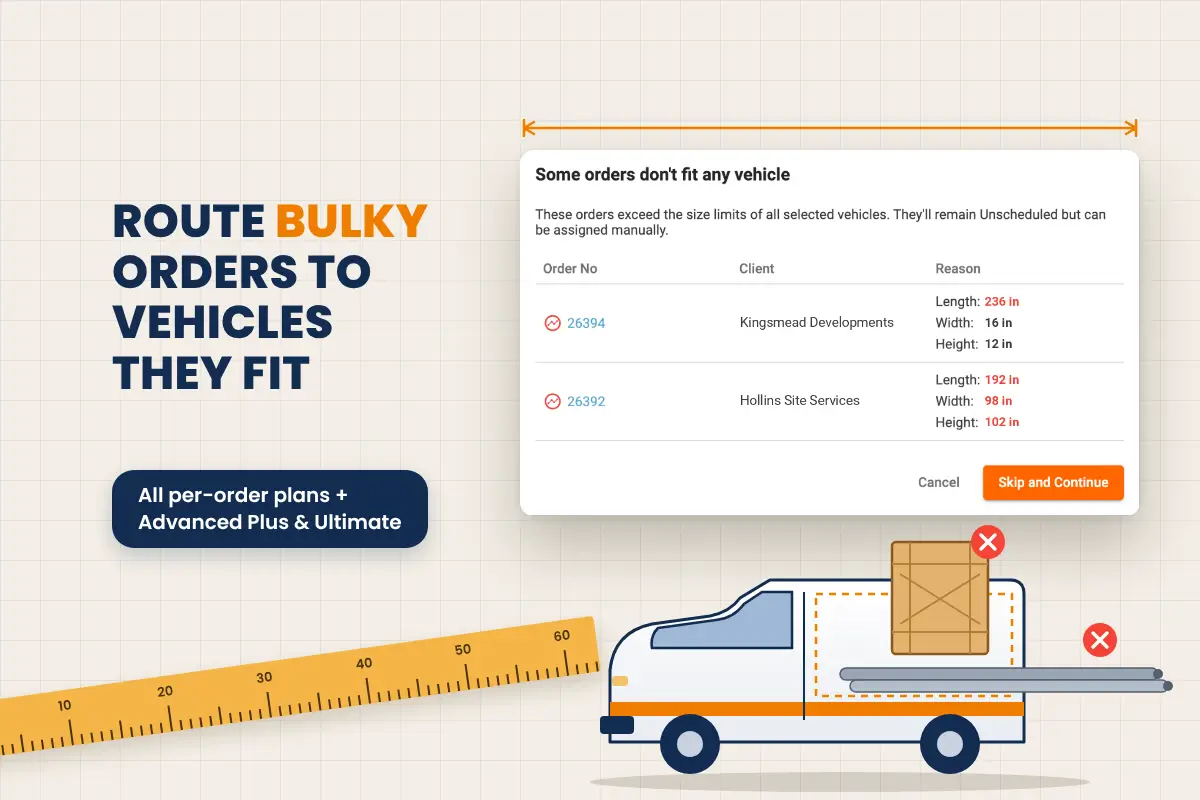
The size check runs before routing starts. If some orders don't fit any of the available vehicles, you see them as soon as you click All Orders in the Routing window.
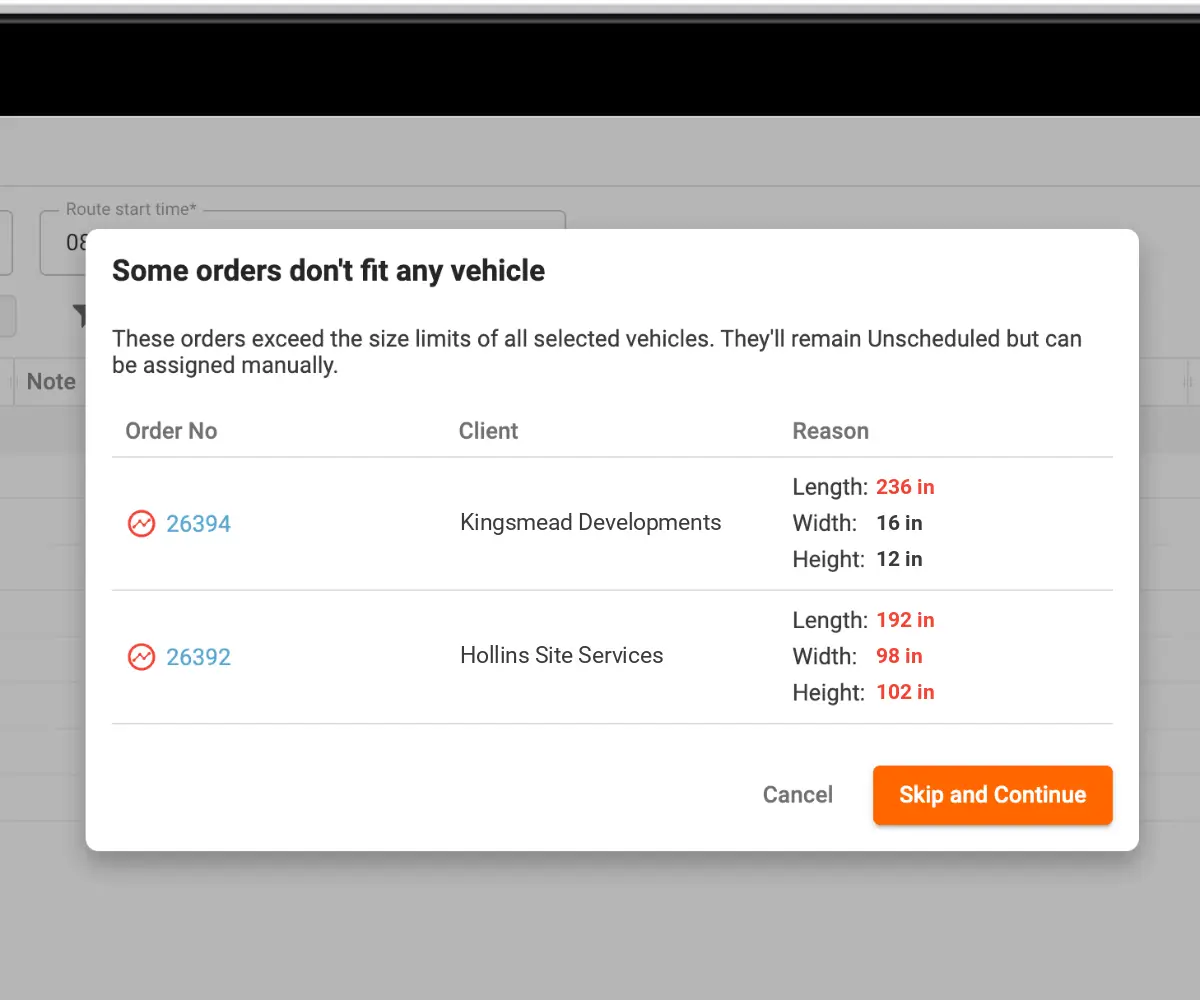
- A dialog titled "Some orders don't fit any vehicle" lists them with their order number, client, length, width and height.
- Choose Skip and Continue without them to route everything else, or Cancel to fix the dimensions or bring in a bigger vehicle first.
- The orders that don't fit stay in Unscheduled, marked with a special icon.
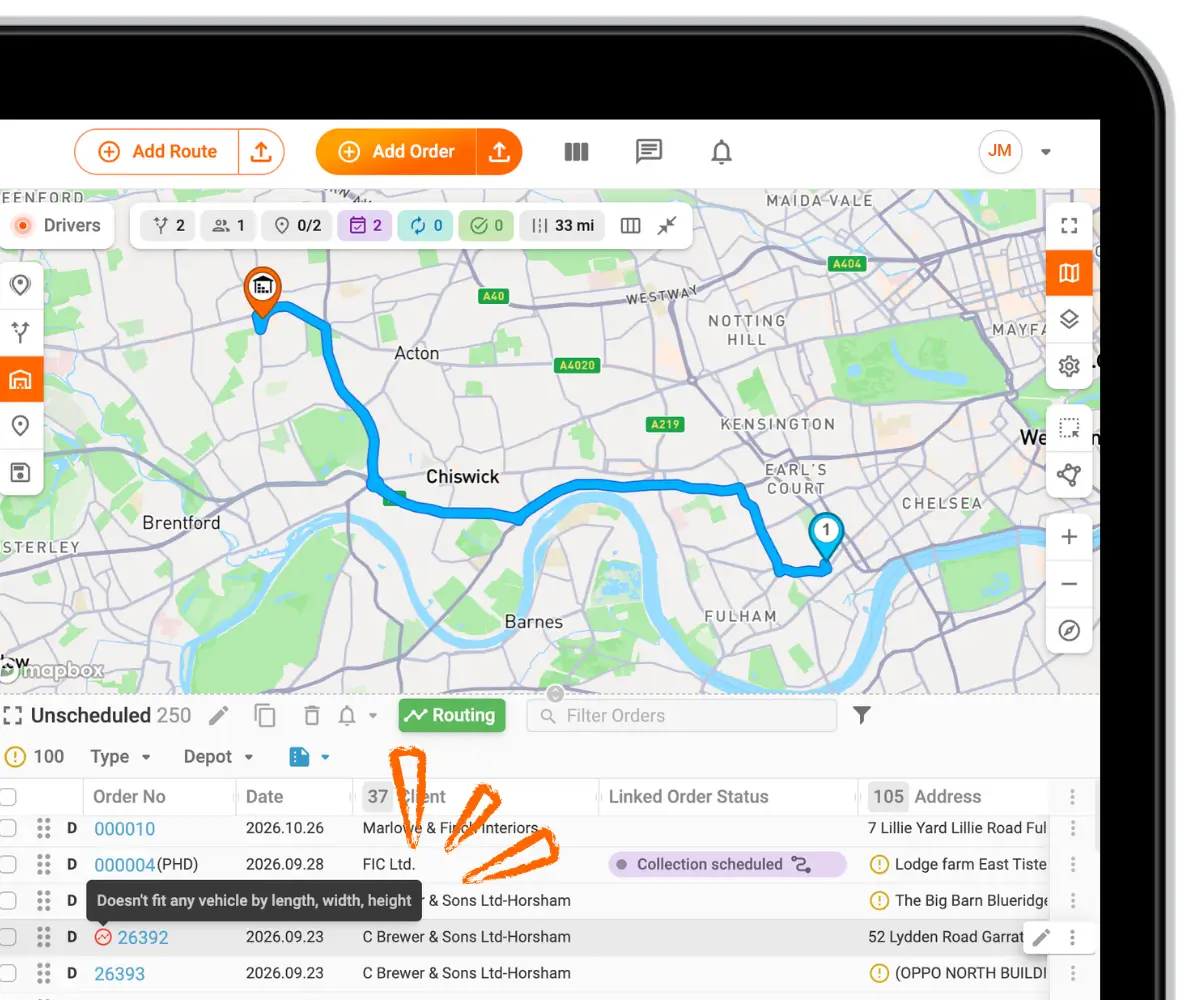
The dialog only appears when there is something to show, so routing works exactly as before for orders that fit.
Why it matters
Bulky goods get the right vehicle. Furniture, appliances, pipes, timber: anything that fits by weight but not through the door is now planned correctly. Problems surface before dispatch, in the routing dialog, and not when a driver tries to load the van at the depot. Teams that used to split their fleet into artificial groups, or plan oversized orders by hand, can leave that to routing.
Recap
Orders and vehicles now have Length, Width and Height in a new Restrictions section. Routing only assigns an order to a vehicle it fits in, checking each dimension separately. Orders that fit no vehicle are listed before routing starts and stay in Unscheduled with a cube icon. Dispatchers can still assign orders by hand, and customers can enter dimensions on their own orders. Available on Advanced Plus and Ultimate per driver plans, and all per order plans.