- Product news
- Route Planning
Redesigned Shippers Page: Set Up Each Shipper in One Place

by
Anton Ananich
August 20, 2026
Every shipper you deliver for comes with its own preferences: how its labels look and get scanned, who in its office hears about deliveries, how its proof of delivery is handled. Keeping all of that straight is part of running deliveries for several clients, and the more shippers you take on, the more often you find yourself in those settings.
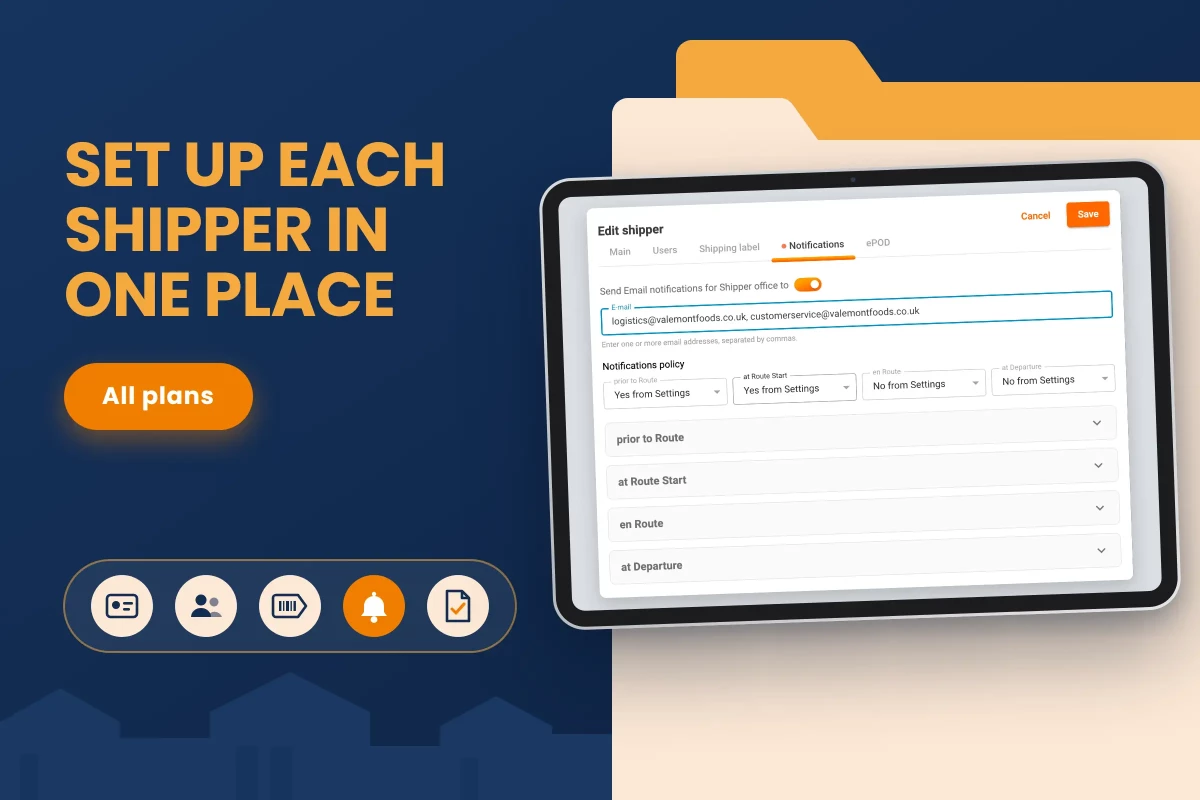
The Edit shipper dialog in Shippers directory now brings everything about a shipper together in one place, organized into tabs for the main details, users, shipping label, notifications and ePOD. You can review a shipper’s whole setup in one view, make changes across several tabs and save them all at once.
One dialog, five tabs
Open a shipper and the dialog shows five tabs along the top: Main, Users, Shipping label, Notifications and ePOD. Everything you used to reach through separate windows is now one click away inside the same dialog.
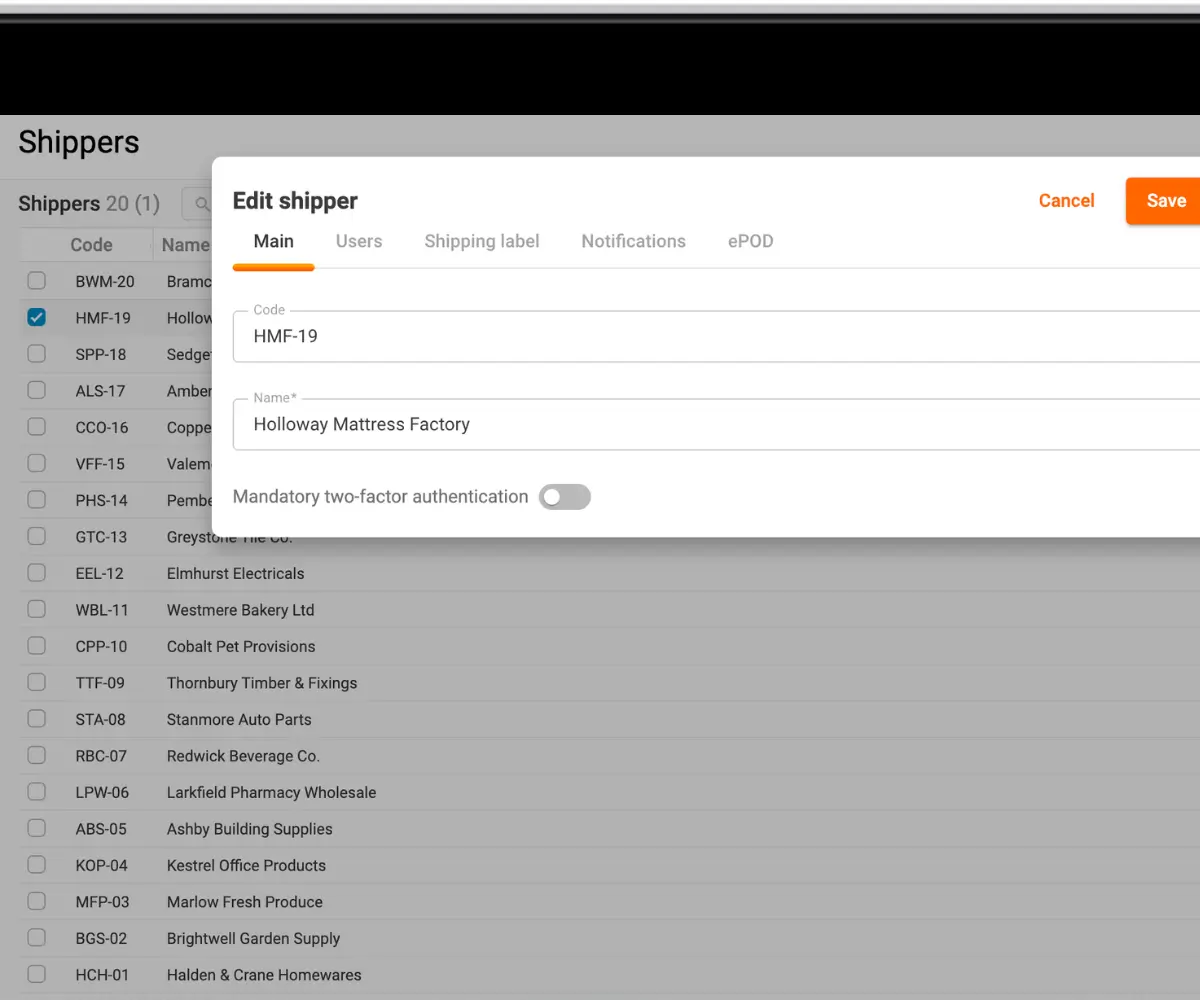
The Shipping label tab holds the shipper's label settings. On the Ultimate plan, this is also where each shipper gets its own label and scanning rules that override the global ones.
The Notifications tab works through collapsible sections. Once notifications are switched on for the shipper, their settings expand below, and you can fold away the parts you aren't working on. Each of those used to be a separate window. ePOD templates for the shipper sit on the ePOD tab.
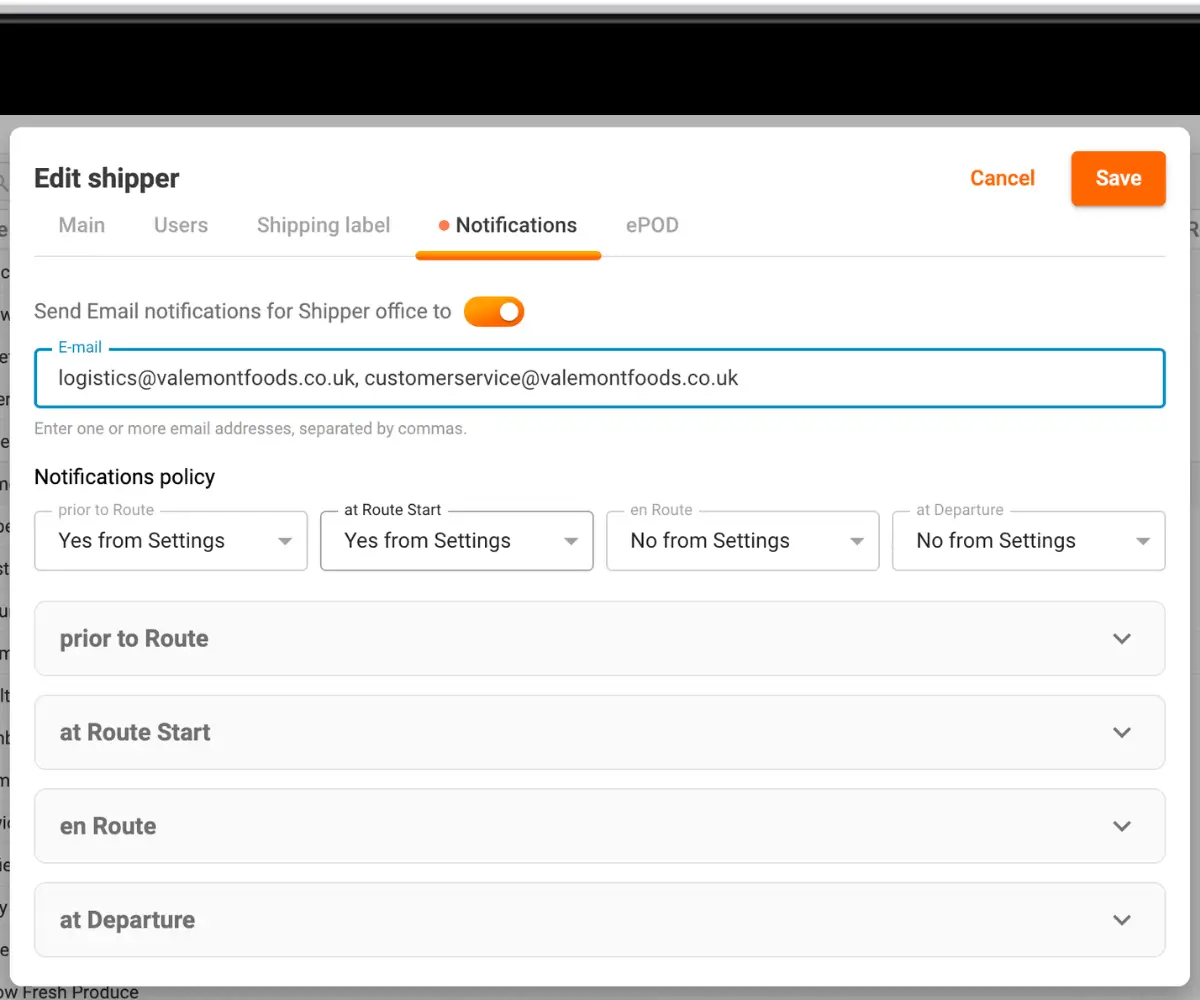
Changes across all five tabs are applied with a single Save, so you can adjust the label, the notifications and the PDF in one pass.
Why it matters
For a business that works with many shippers, onboarding a new one or changing an existing setup is routine work, and the old layout turned it into a series of separate windows. Having every setting in one dialog makes it quicker to configure a shipper fully and easier to check later what that shipper actually has set.
The tabs and collapsible sections also make a long list of options manageable, and a single Save removes the risk of changing a label in one window and forgetting to save the notifications in another.
Recap
The Edit shipper dialog now holds every shipper setting in five tabs: Main, Users, Shipping label, Notifications and ePOD. One Save applies changes from all of them. The Shippers grid drops its gear and template icons and keeps the Custom and No badges. Available on all plans.